Add Websites to Intervention [Browser Extension]
Learn how to add new websites to your one sec desktop browser extension, customize intervention settings, and allow specific sub-domains for productive work.
Last updated 7 months ago
Article Content:
There are two ways to modify which websites should be intervened by one sec on your desktop browser: the quick action menu and the full extension settings.
1. Quick Add via the Extension Icon
Open the website you want to intervene.
Press the one sec icon in your browser's extension bar (if you don't see it, it might be hidden in your extension sub-menu).
Press the Block [Website Name] button. The current website will be directly added to your list of intervened domains.
2. Configure Extension Settings (Dashboard)
If you would like to add multiple URLs at once or modify your settings, you need to open the Dashboard:
Click the one sec icon in your browser bar.
Select Configure Extension (or Dashboard).
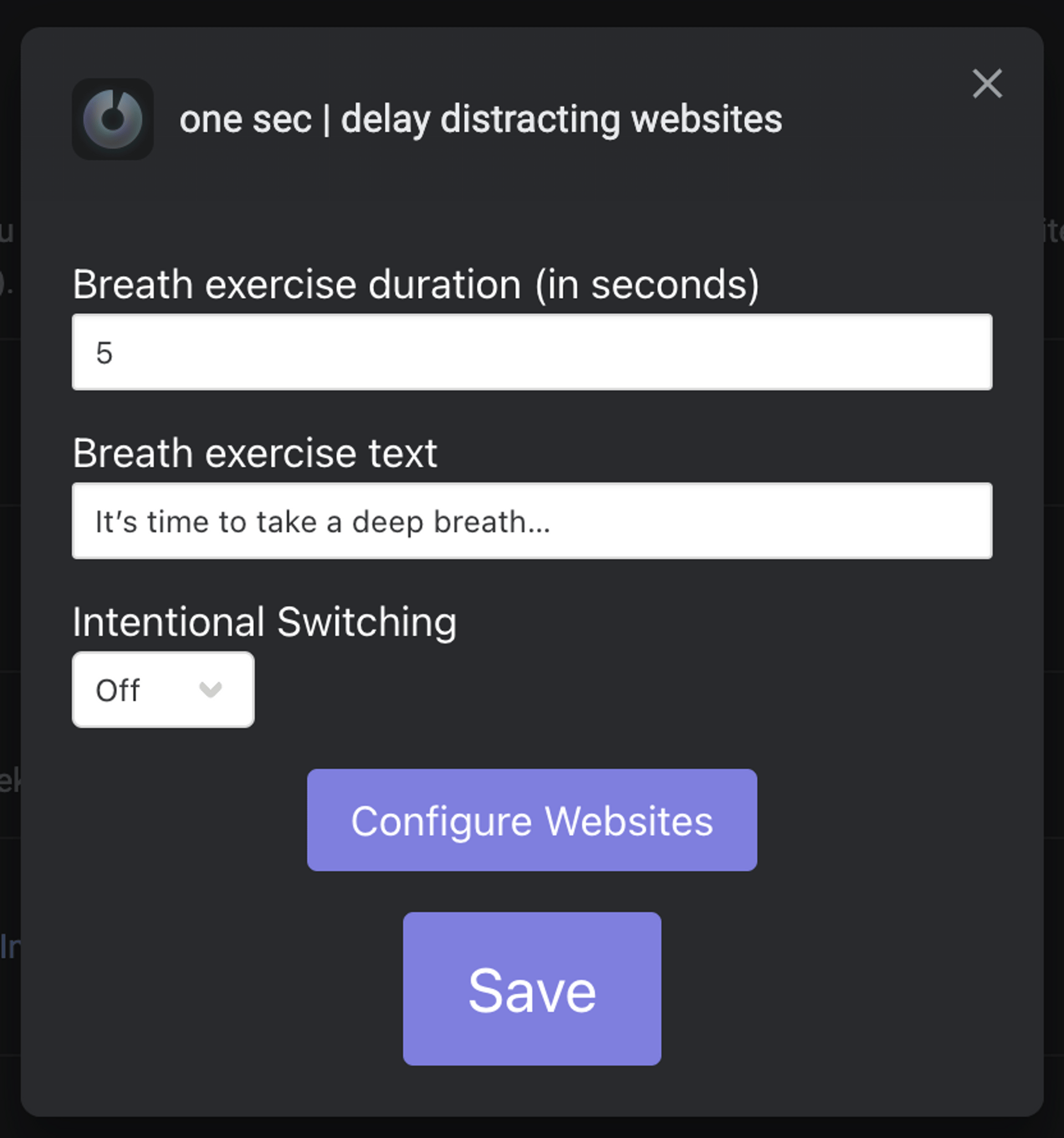
In these settings you can change:
The duration of the intervention.
The text displayed during the intervention.
Toggle intentional website switching.
Configure websites (Add or remove URLs).
3. Configure Websites & Allow Sub-domains
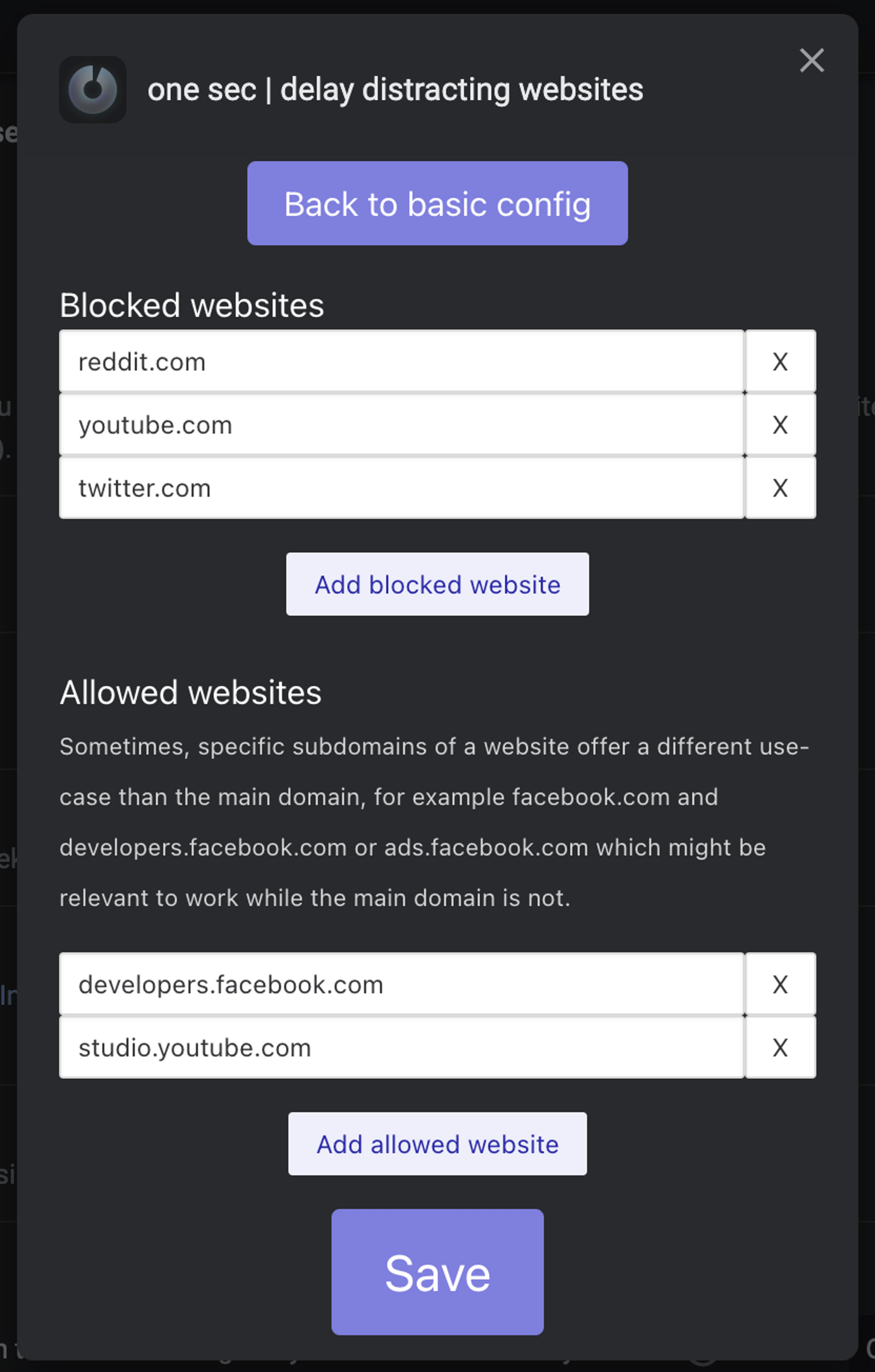
In the Configure Websites menu, you can add URLs to intervene. More importantly, you can also add sub-domains (or complete URLs) to be always allowed without an intervention.
This is especially useful because some parts of a website might need to be accessed for productive purposes (e.g., developer documentation, marketing pages, or content creator tools).
Examples of productive sub-domains you might want to allow:
studio.youtube.com(YouTube Creator Studio)facebook.com/adsmanagerfacebook.com/adsads.twitter.comdevelopers.facebook.com
Simply add these URLs to your allowed list, so you can work productively while the main social media feeds remain intervened.
Was this helpful?
Still need help? Ask the team