Intentional App Switching [iOS]
Learn how to set up intentional app switching on iOS using Shortcuts. This allows you to quickly switch between apps for productive reasons without triggering a new intervention.
Last updated 7 months ago
Article Content:
Sometimes it’s necessary to leave social media and quickly switch between apps: to check contact info, a note, or a location in Maps.
The goal of one sec is not to disrupt any productive workflows. That’s why we offer a secondary Shortcut that can be executed when closing an app. This allows us to measure the time between closing and re-opening the app, letting you re-open it within a certain time limit without another intervention.
Step 1: Open Shortcuts
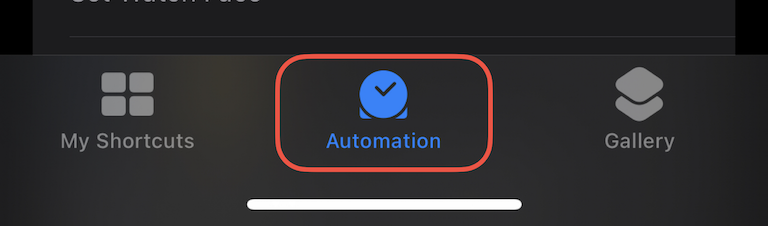
On your iPhone, open the Shortcuts app and go to the Automation tab at the bottom.
Step 2: Create a New Automation
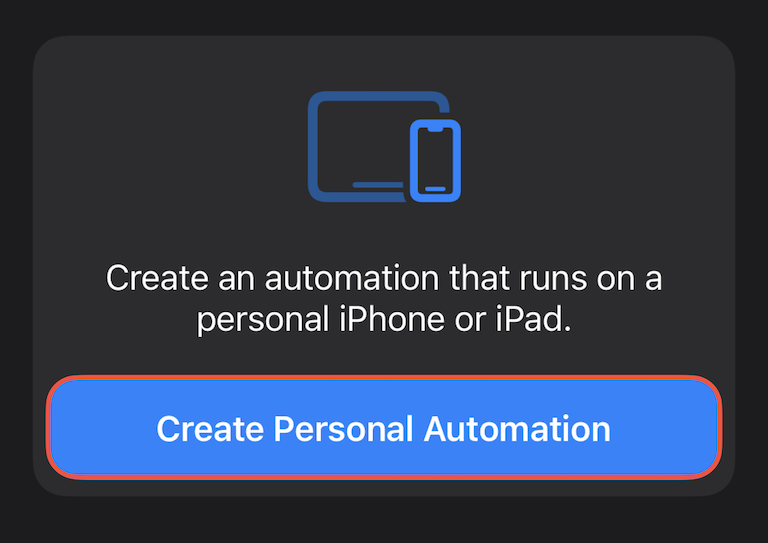
Tap the [+] button in the top right corner to create another Personal Automation.
Step 3: Select "App"
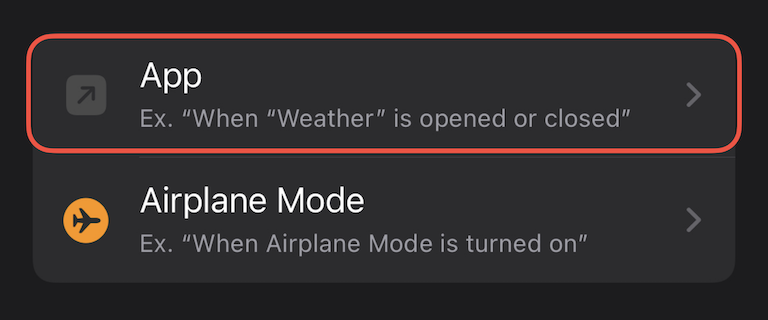
Scroll through the list of triggers and select App.
Step 4: Configure the Trigger (Crucial Step!)
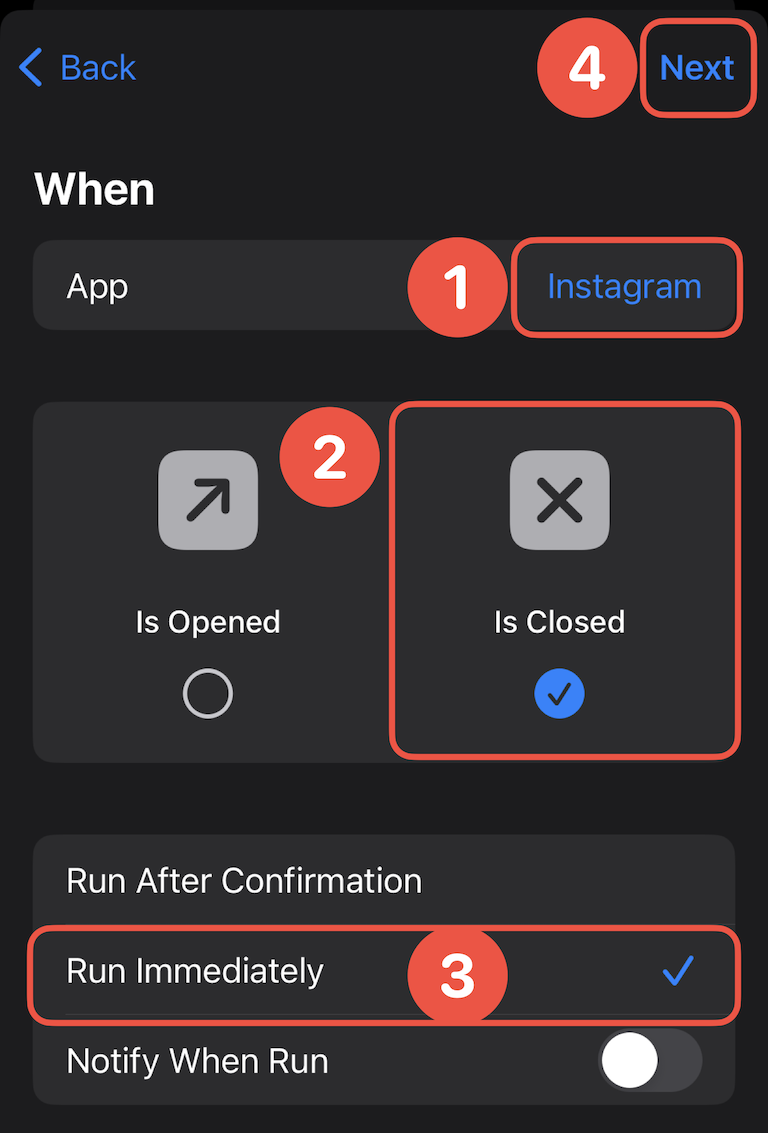
Tap Choose and select the app you’d like to configure (e.g., Instagram).
⚠️ Note: Only select one app here. A separate automation is required for each app.
Ensure that ONLY "Is Closed" is selected (uncheck "Is Opened").
At the bottom, select Run Immediately.
Tap Next.
Step 5: Add the Action
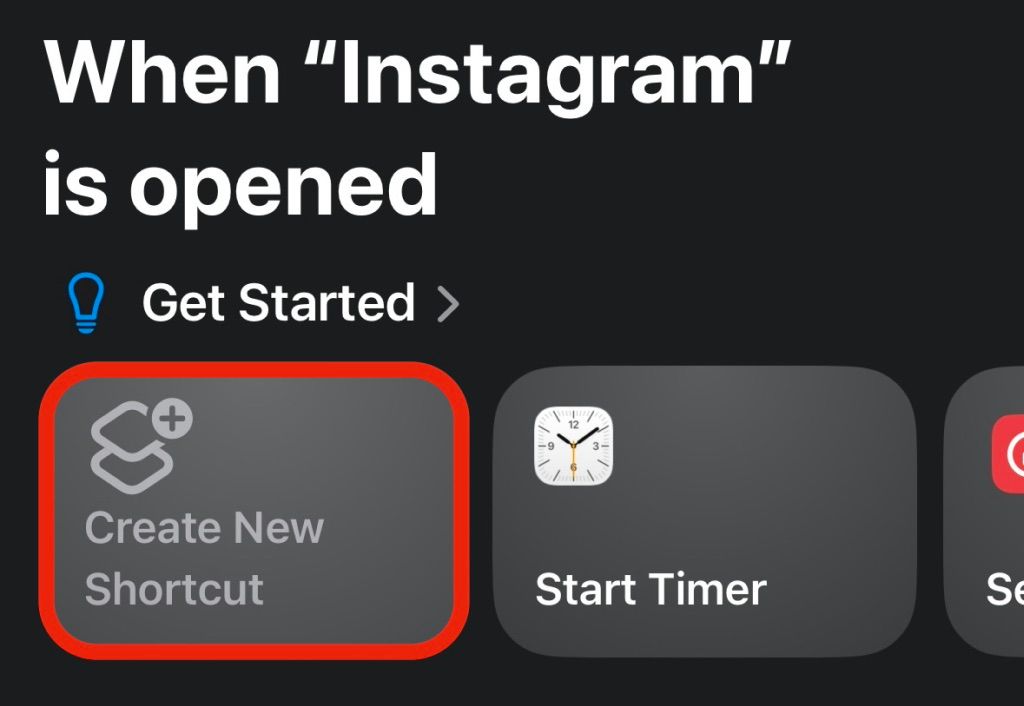
Select Create New Shortcut.
(Note: If you don’t see this option, you’re running an older iOS version. Please refer to our legacy tutorials).
Step 6: Search for "one sec"
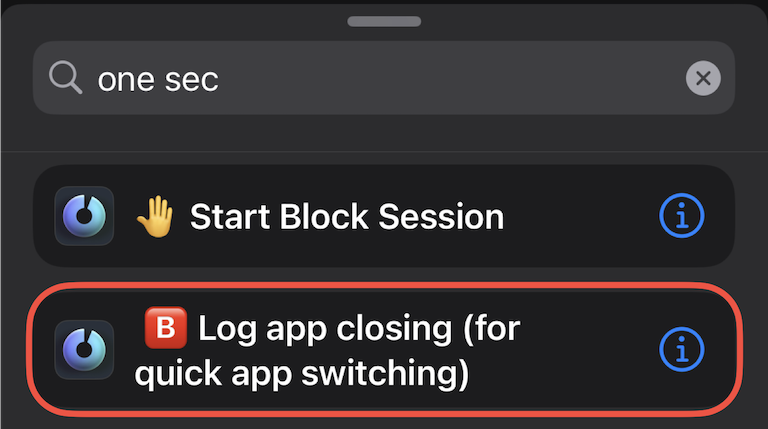
In the search bar, type "one sec" and select the action: 🅱️ Log app closing (for quick app switching).
Step 7: Re-select the App (Critical Step!)
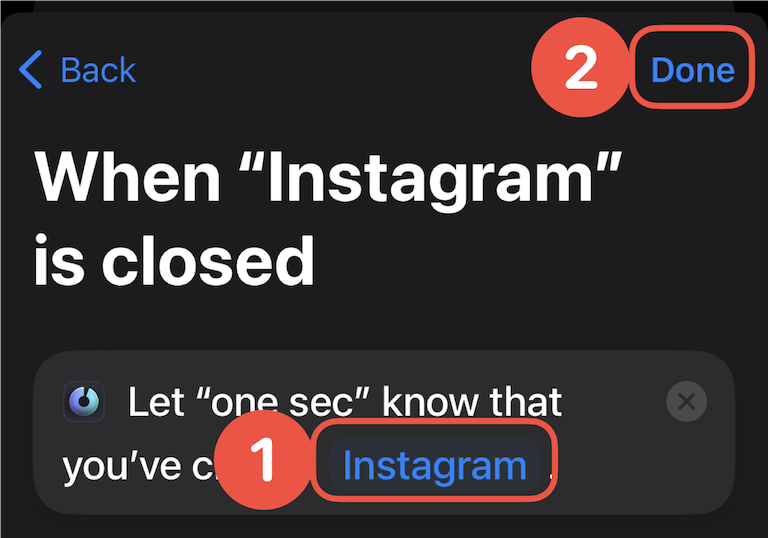
Tap the App variable inside the action block (it will be highlighted in a light blue color) and re-select the previously selected app. ⚠️ The Automation won’t run without this.
Tap Done and you’re all set!
Was this helpful?
Still need help? Ask the team