Initial one sec Setup on iOS (iOS 17+)
Step-by-step guide to setting up one sec on iOS 17+. Learn how to create personal automations in the Shortcuts app to activate interventions and break impulsive habits when opening social media apps.
Last updated 7 months ago
Before you start, make sure you have one sec installed on your device. You can download it for free from the App Store.
Step 1: Open Shortcuts
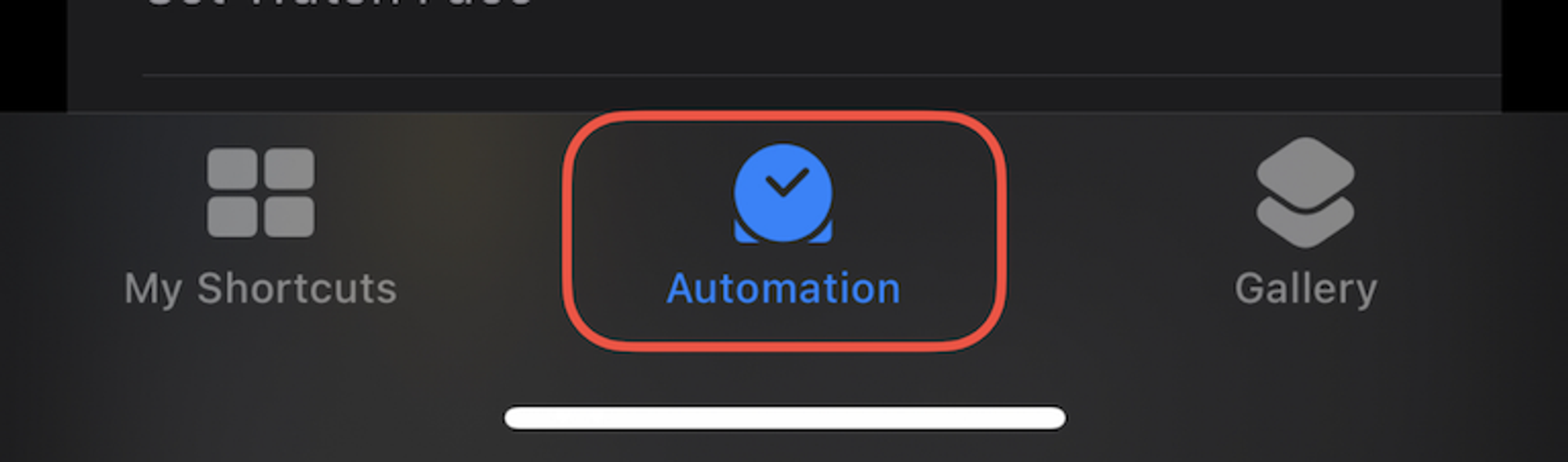
On your iPhone or iPad, open the Shortcuts app and navigate to the Automation tab at the bottom.
Step 2: Create Automation
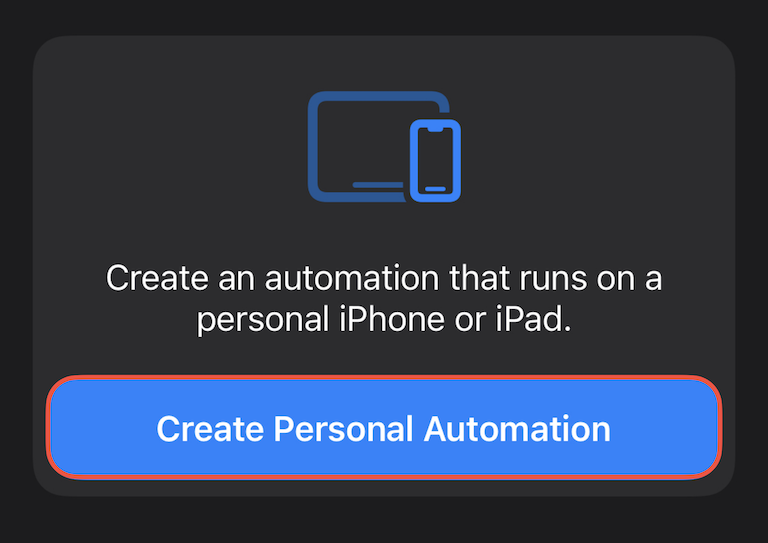
Create a personal automation (you might need to tap on + if you already have other automations set up).
Step 3: Select "App"
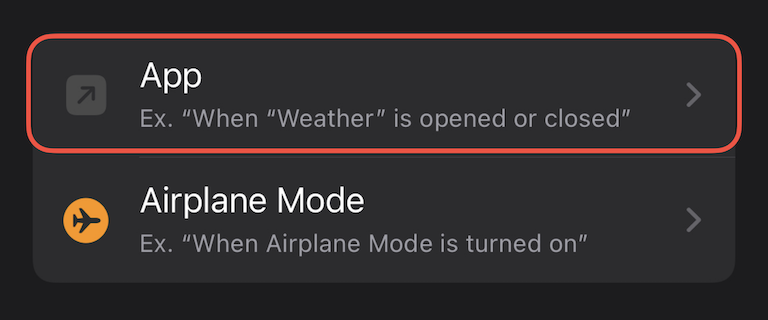
Scroll through the list of triggers and select App.
Step 4: Configure the Trigger
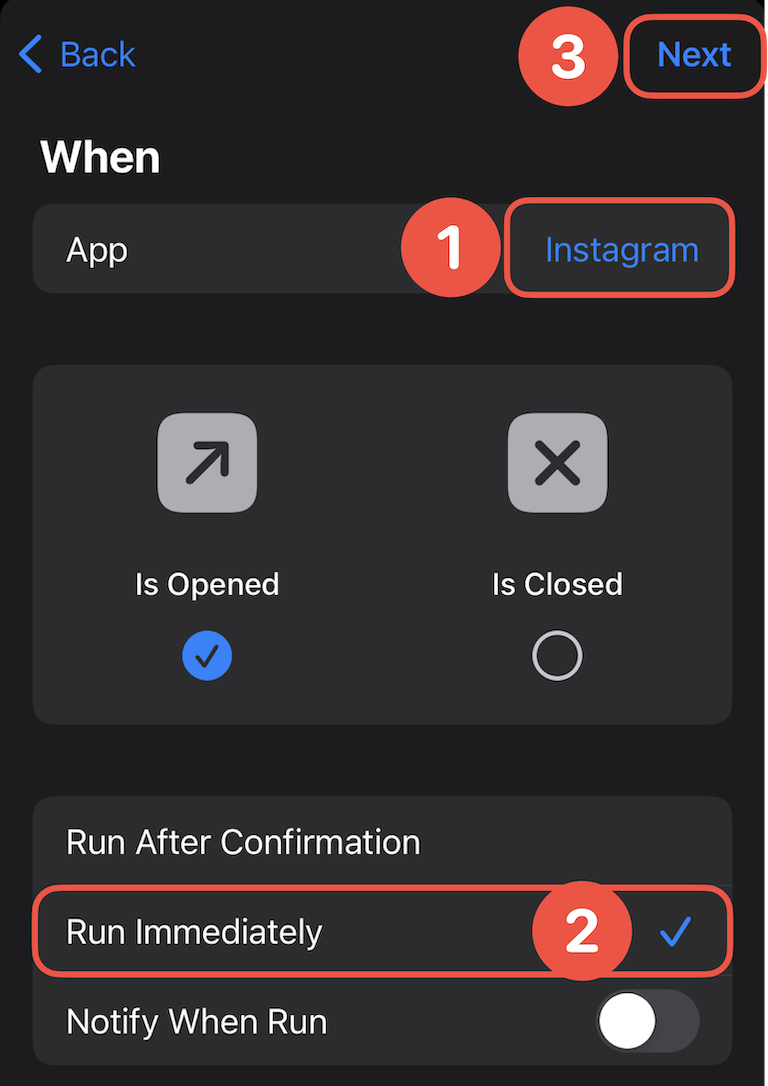
Tap Choose and select the app you want to use with one sec (e.g., Instagram). ⚠️ Note: Please only select one app here. A separate automation is required for each app to work correctly.
At the bottom, ensure Run Immediately is selected.
Tap Next in the top right corner.
Step 5: Add the Action
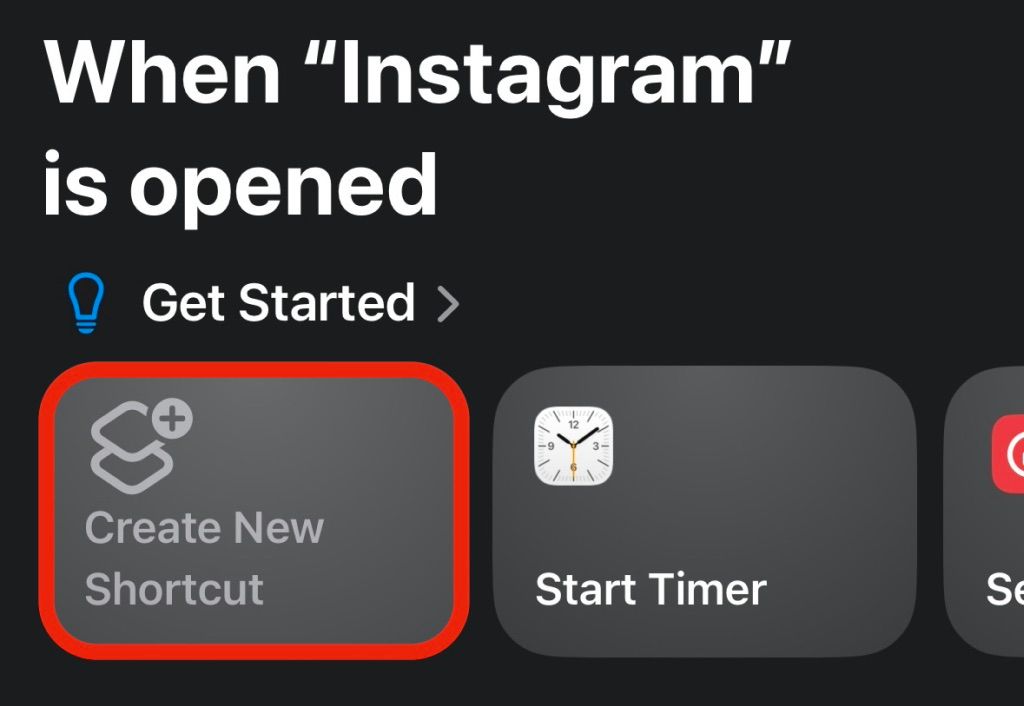
Select Create New Shortcut. (Note: If you don't see this option, ensure your device is updated to the latest iOS version. For older versions, please refer to our legacy tutorials.)
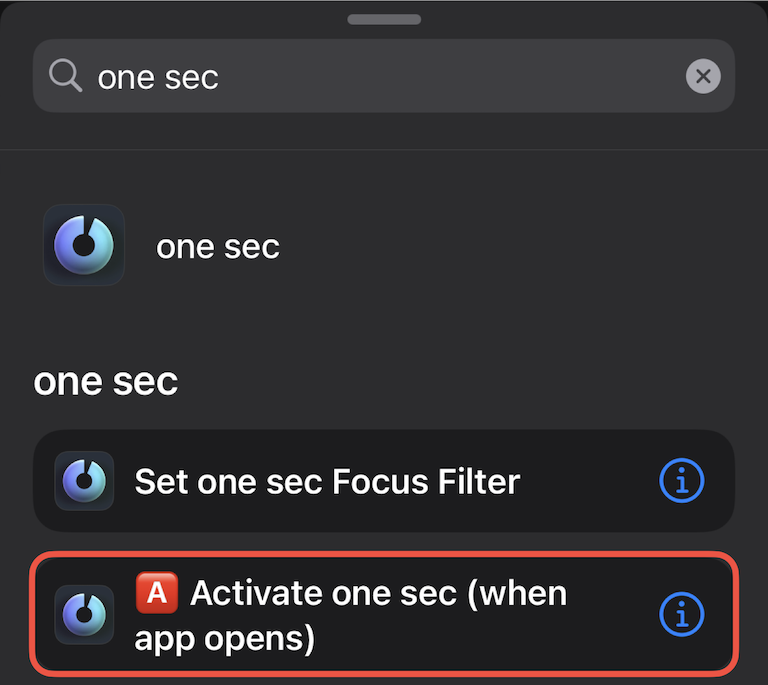
Step 6: Search for "one sec"
In the search bar, type "one sec" and select the action: 🅰️ Activate one sec (when app opens).
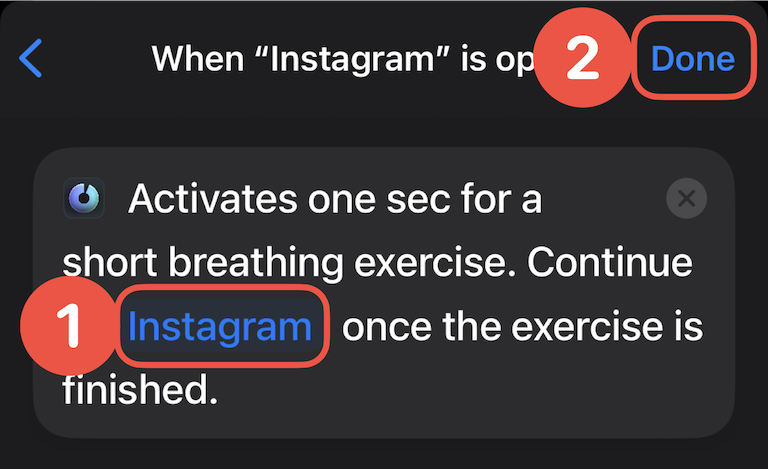
Step 7: Re-select the App (Critical Step!)
Tap the App variable inside the action block (it will be highlighted in a light blue color) and re-select the same app you chose in Step 4.
⚠️ The automation will not trigger correctly if this step is skipped!
Need help setting up one sec? Get in touch.
Was this helpful?
Still need help? Ask the team