Re-Intervention [iOS]
Learn how to set up Re-Interventions on iOS using the Screen Time API to interrupt doomscrolling and limit your time spent on target apps.
Last updated 7 months ago
Article Content:
What are Re-Interventions? Re-Interventions interrupt doomscrolling in a target app after a set amount of time, requiring you to go through another intervention (e.g., a breathing exercise) to resume use. This is especially useful for limiting the time spent on target apps and ensuring that your screen time is intentional.
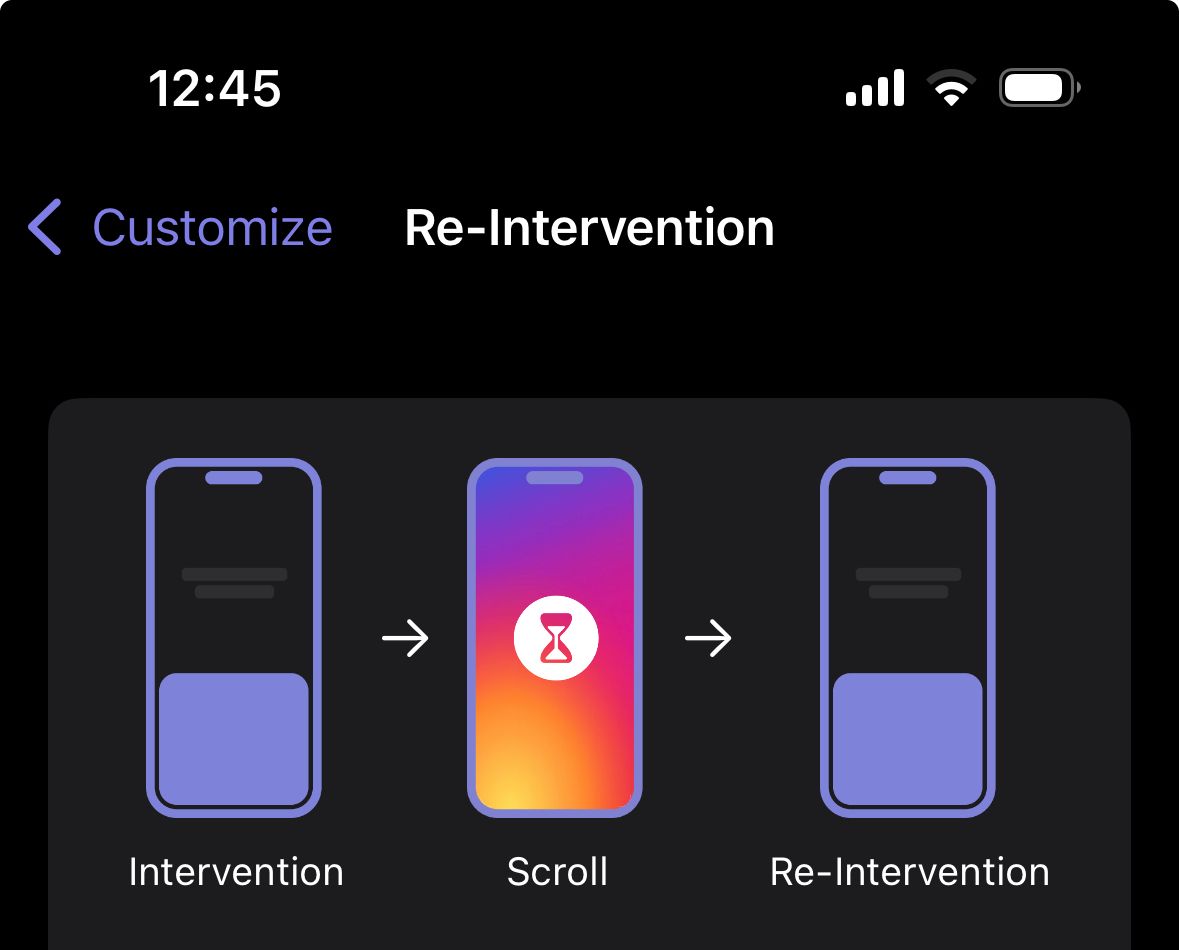
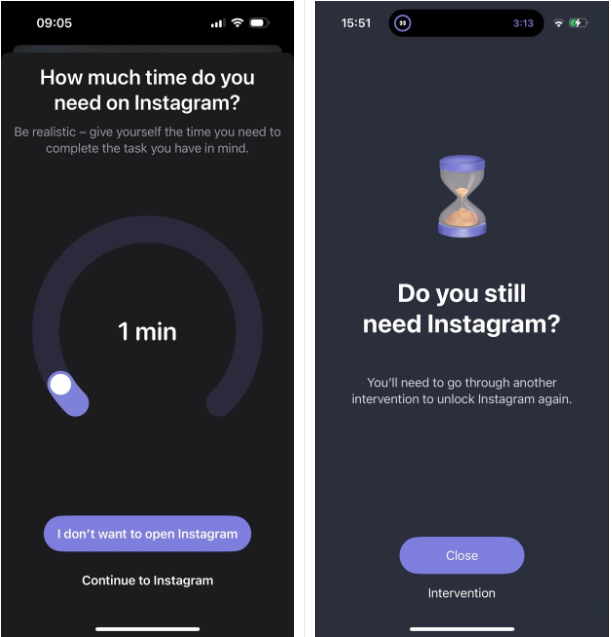
How to set up Re-Interventions on iOS:
Step 1: Open Re-Intervention Settings
Open the one sec app.
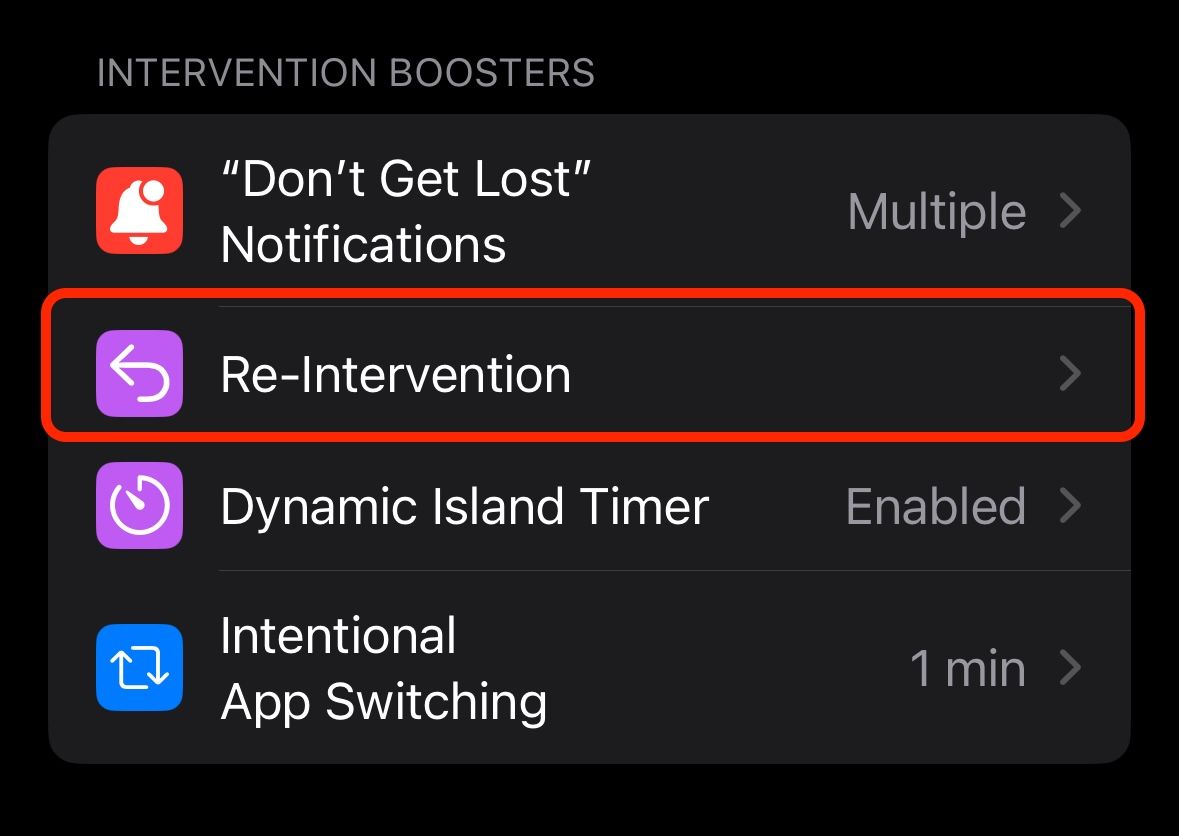
Go to Customize → Re-Intervention.
If you haven’t already, follow the on-screen request to grant access to the Screen Time API.
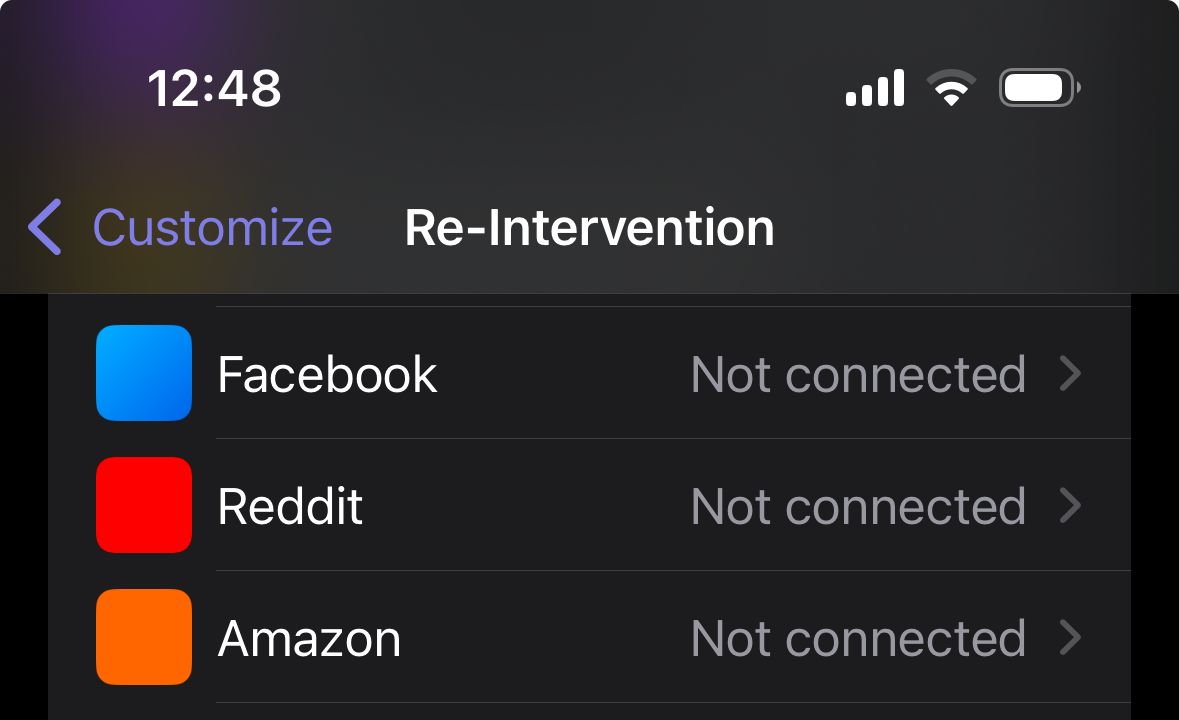
Step 2: Select the Target App Find and select the app you’d like to set up a Re-Intervention for from your list. (For example: Facebook).
Step 3: Connect Apple's Screen Time Tap on Connect… This will bring up Apple’s built-in Screen Time App picker.
⚠️ Important: Only select one app here.
Find the app you’re looking for by using the little arrow to unfold a category, or use the search function.
💡 Please note: Apple’s app picker is notoriously buggy and unreliable. Especially when using the search, it can crash frequently. We recommend using the little dictation (microphone) icon to insert the app name, as this seems to work much better.
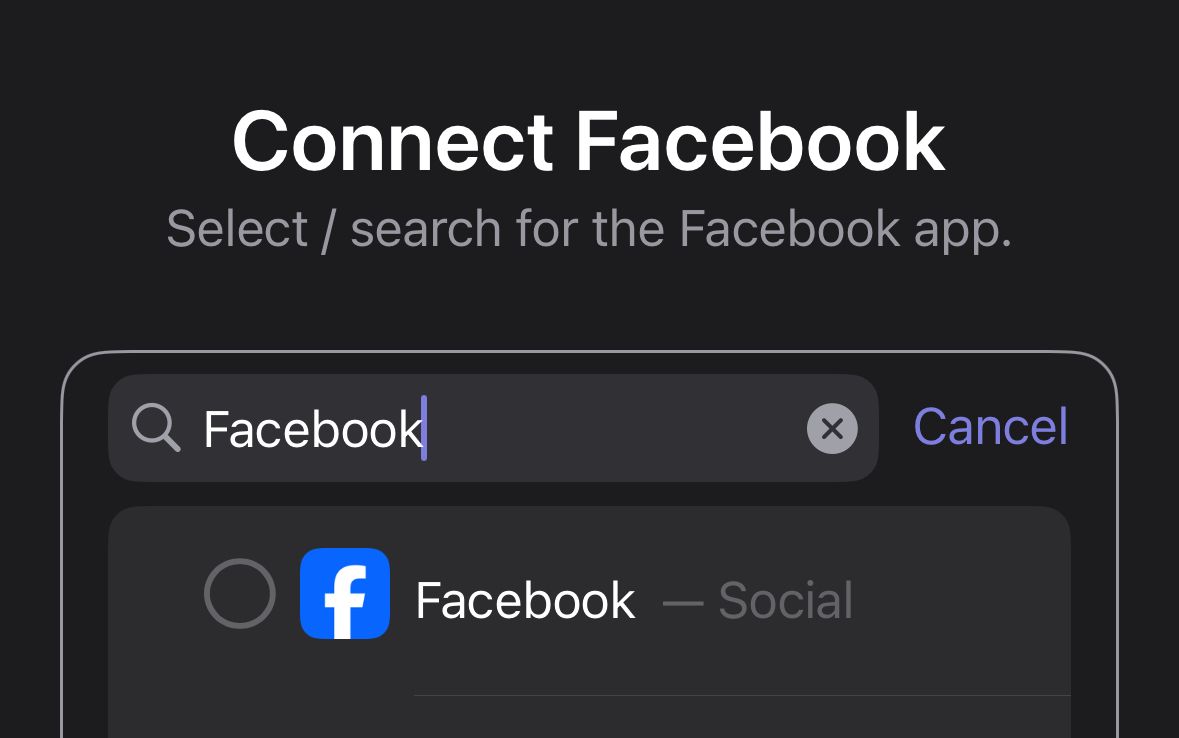
Step 4: Confirm Select the app and tap done. Now the Re-Intervention is successfully set up!
Troubleshooting
What if I selected the wrong app? You can easily change the assigned app by tapping on Change app… in the one sec menu.
What if the Apple app picker crashes or does not show any apps? Please try again. Apple’s app picker is very unreliable, unfortunately. Sometimes it simply takes a few tries to get it working correctly.
Was this helpful?
Still need help? Ask the team