Setting up the Safari Extension [iOS]
Learn how to set up and enable the one sec Safari extension on your iPhone or iPad to intervene and block distracting websites directly in your mobile browser.
Last updated 7 months ago
Article Content:
You can also use one sec to intervene when you open distracting websites on your iPhone or iPad by installing our Safari extension.
Here is how to set it up:
Step 1: Enable the Extension in iOS Settings
First, you need to activate the extension in your device's settings:
Open your iPhone or iPad Settings.
Scroll down and select Safari.
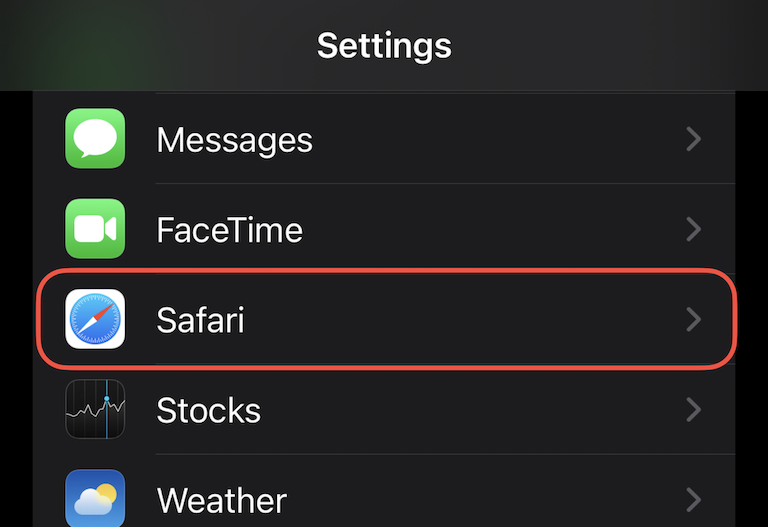
Scroll down again and tap on Extensions.
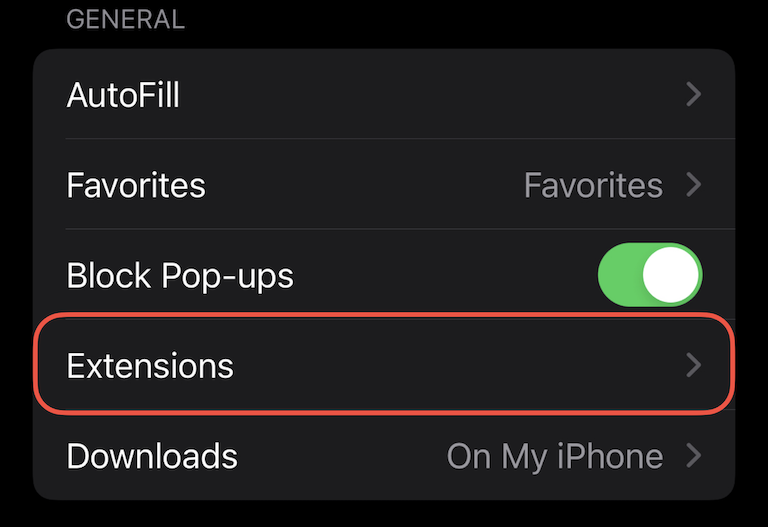
Step 2: Grant Permissions
In the Extensions menu, tap on one sec.
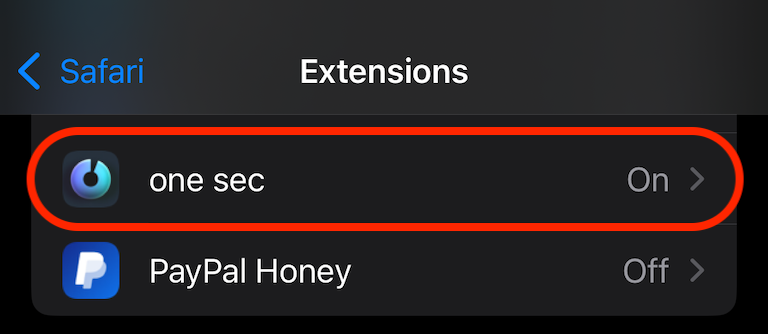
Enable the toggle for one sec Safari extension.
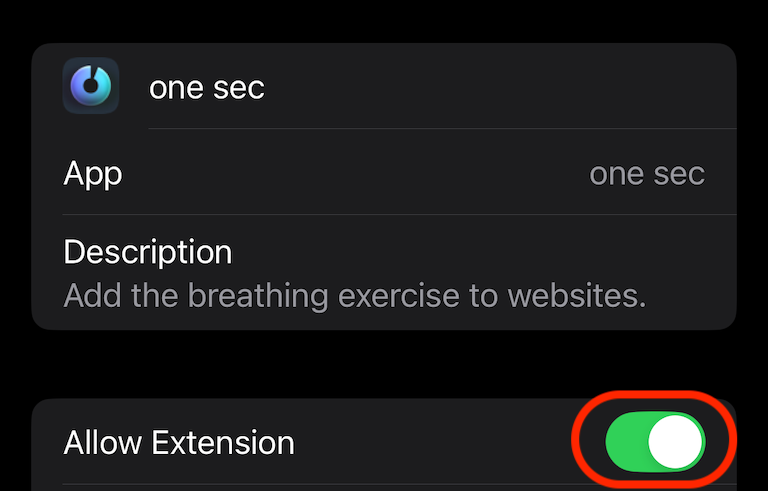
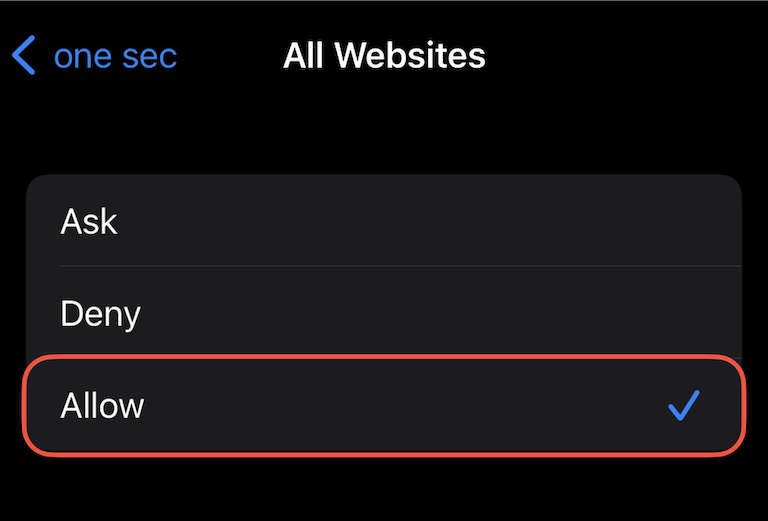
Scroll down to the permissions section and tap Permission → select Allow.
Step 3: Add Websites to be Intervened
Once the extension is active, you can easily add websites directly from your browser:
Open Safari and navigate to the website you want to block (e.g., instagram.com).
Tap on the plugin/extension icon (the puzzle piece or
aAicon) in the bottom left of your address bar.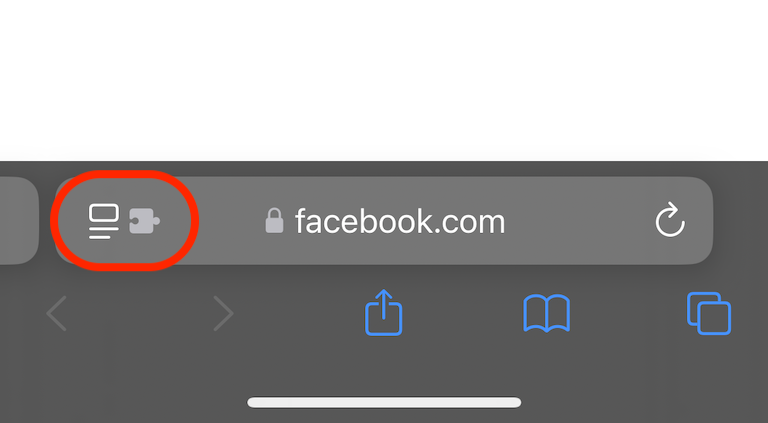
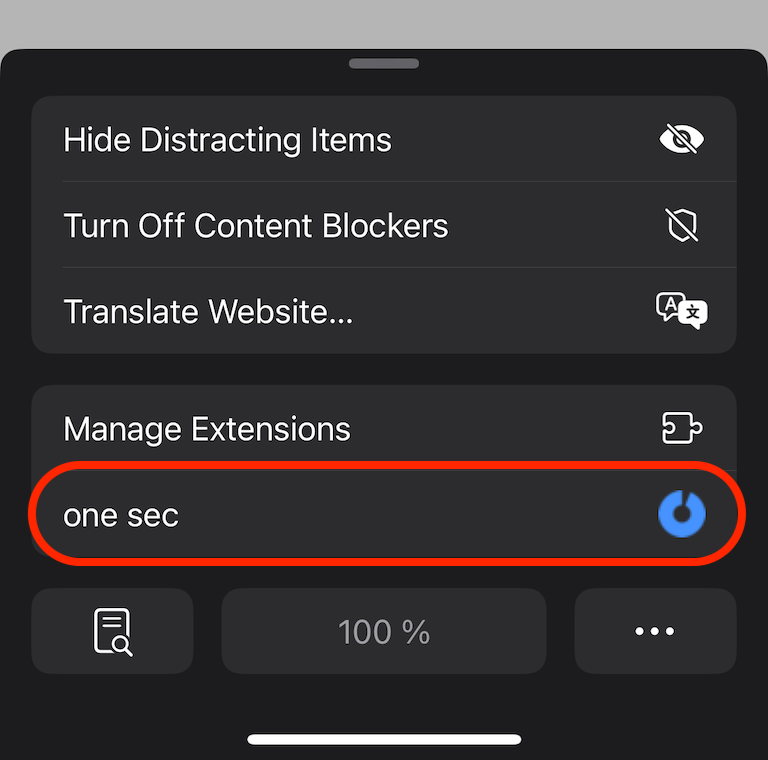
Select one sec from the menu.
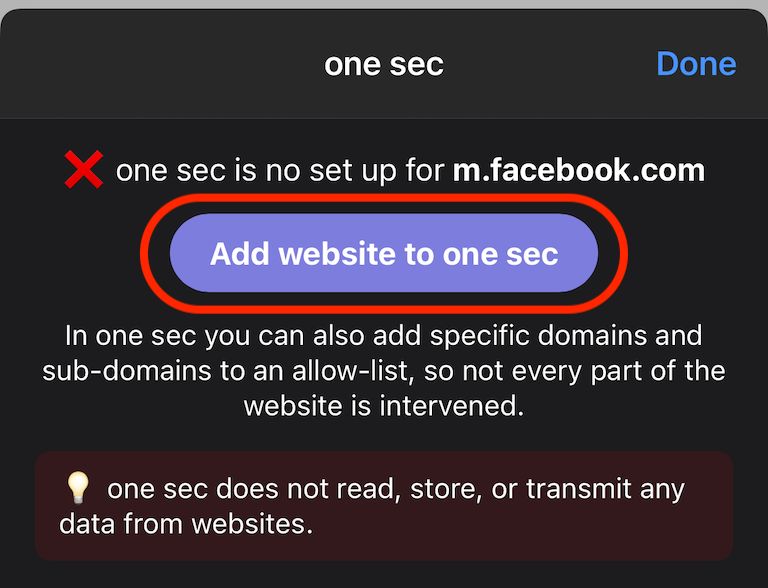
Tap Add website to one sec.
Was this helpful?
Still need help? Ask the team