Lock Screen Time Permissions (Prevent Cheating) [iOS]
Stop your 'short-term self' from disabling one sec's permissions during a strict block. Learn how to set up an automation that locks the iOS Settings app whenever a block is active.
Last updated 7 months ago
During strict blocks, you might be tempted to turn off one sec’s Screen Time Permission to cheat – but no worries, there’s a solution so your long-term self can stop your short-term self from cheating during strict blocks:
To start, please make sure you have the latest iOS update of one sec installed (4.0.11 or newer).
1. Add one sec’s “Lock Screen Time” Shortcut
Tap this link to download a new Shortcut and add it to the Shortcuts app.
2. Set up a new Automation
Open the Shortcuts app, and select the Automations tab.
Tap + to create a new Personal Automation.
Select the Settings app and Run Immediately.
Tap next and select the new Shortcut “” that you’ve downloaded in Step 1.
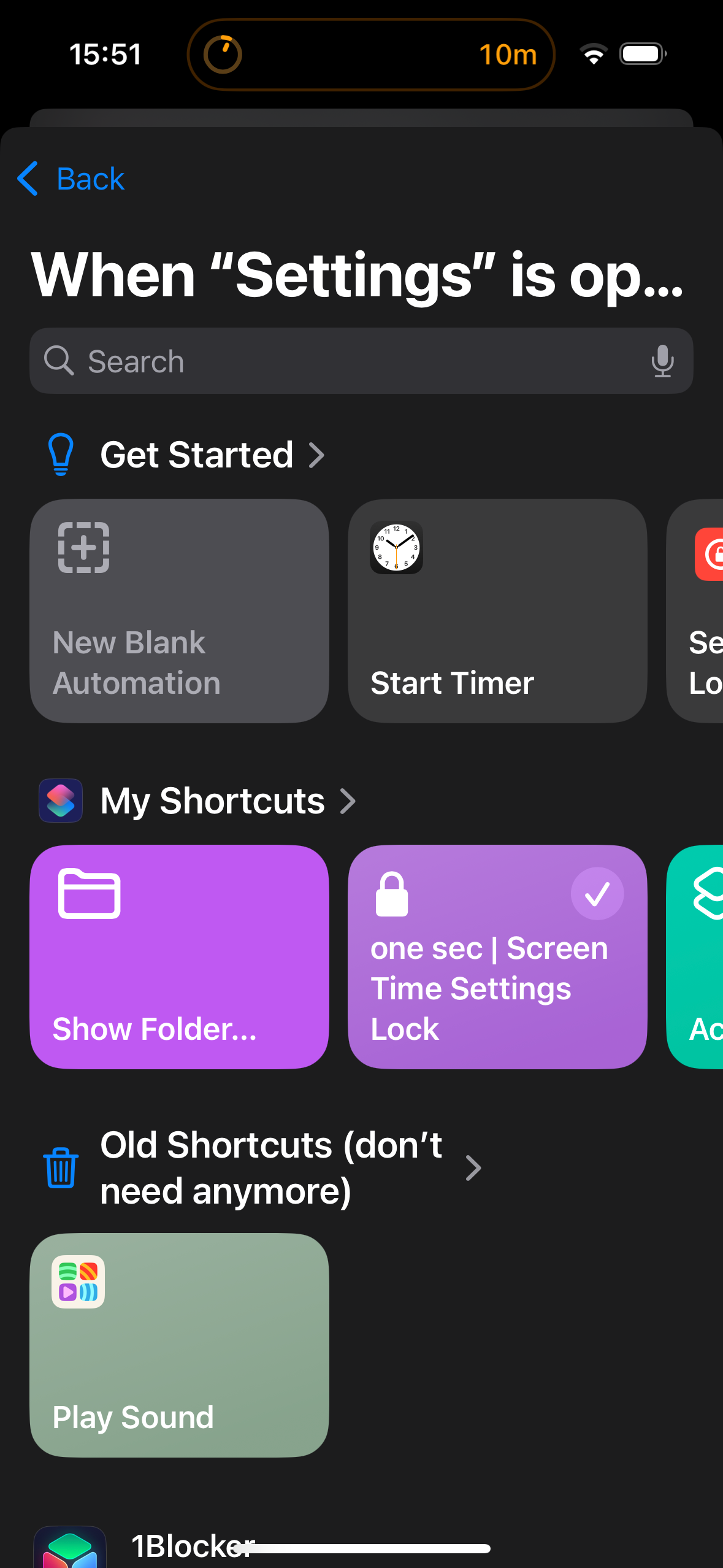
hat’s already it! Now, during strict blocks, you’ll be forwarded into one sec whenever you try to access the Settings app.
Lock the Shortcuts App as well
If you’re afraid that you might delete the automation during a strict block, you can lock the Shortcuts app as well.
Was this helpful?
Still need help? Ask the team