Recurring Blocks [iOS]
Learn how to set up Recurring Blocks on iOS. Unlike standard interventions, these blocks completely prevent access to distracting apps during specific hours, showing a blocking shield instead.
Last updated 7 months ago
rticle Content:
Sometimes a breathing exercise isn’t enough and you need a harder barrier. Recurring Blocks (formerly known as Scheduled Blocks) allow you to block apps completely during specific times of the day.
Instead of an intervention (like the breathing exercise), you will see a Blocking Shield that prevents you from accessing the app at all during the scheduled window.
[🖼️ BILD EINFÜGEN: Screenshot des "Blocking Shield" – wie es aussieht, wenn eine App gesperrt ist]
1. How to access Recurring Blocks
Open the one sec app.
Go to Settings.
Select Recurring Blocks (or Blocking Schedule).
[🖼️ BILD EINFÜGEN: Screenshot der Einstellungen mit dem Menüpunkt "Recurring Blocks"]
2. Create or Edit a Schedule
In this menu, you can see your existing schedules or create a new one by tapping the [+] button.
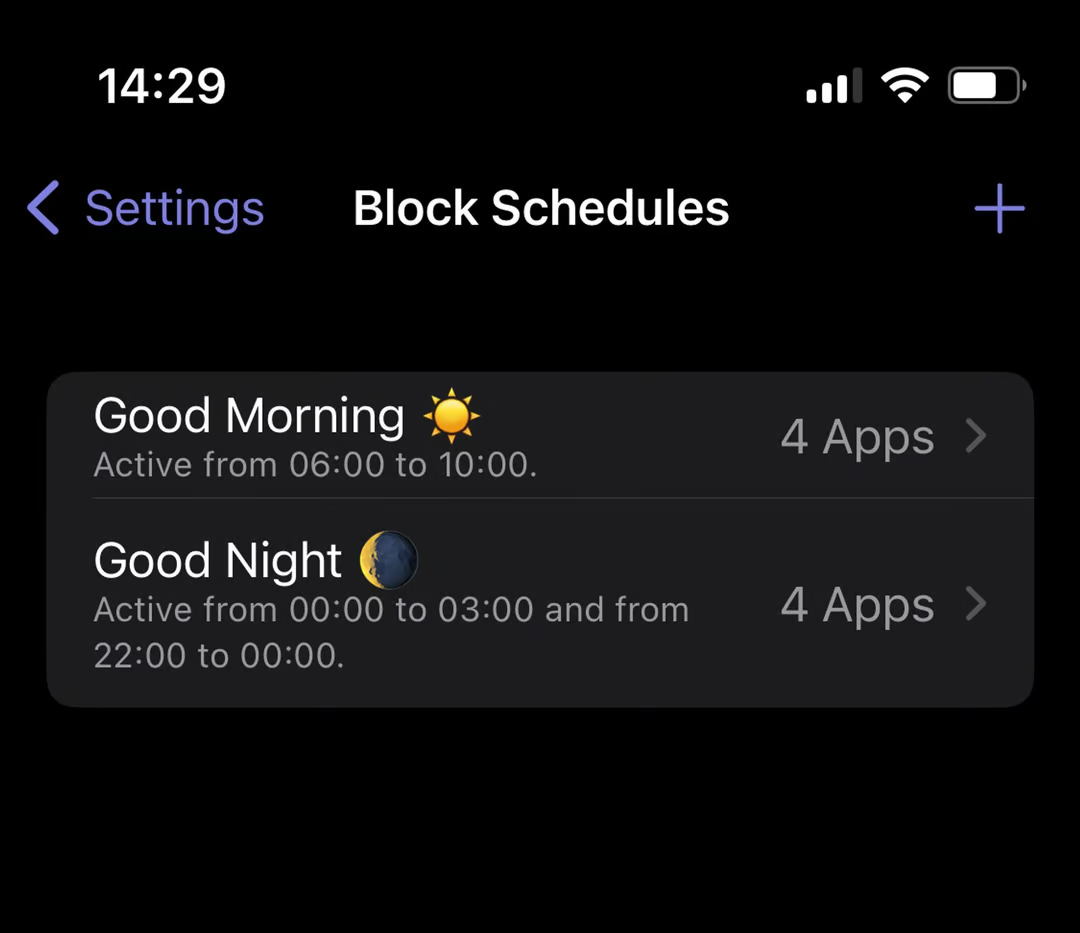
When setting up a new block, you can configure:
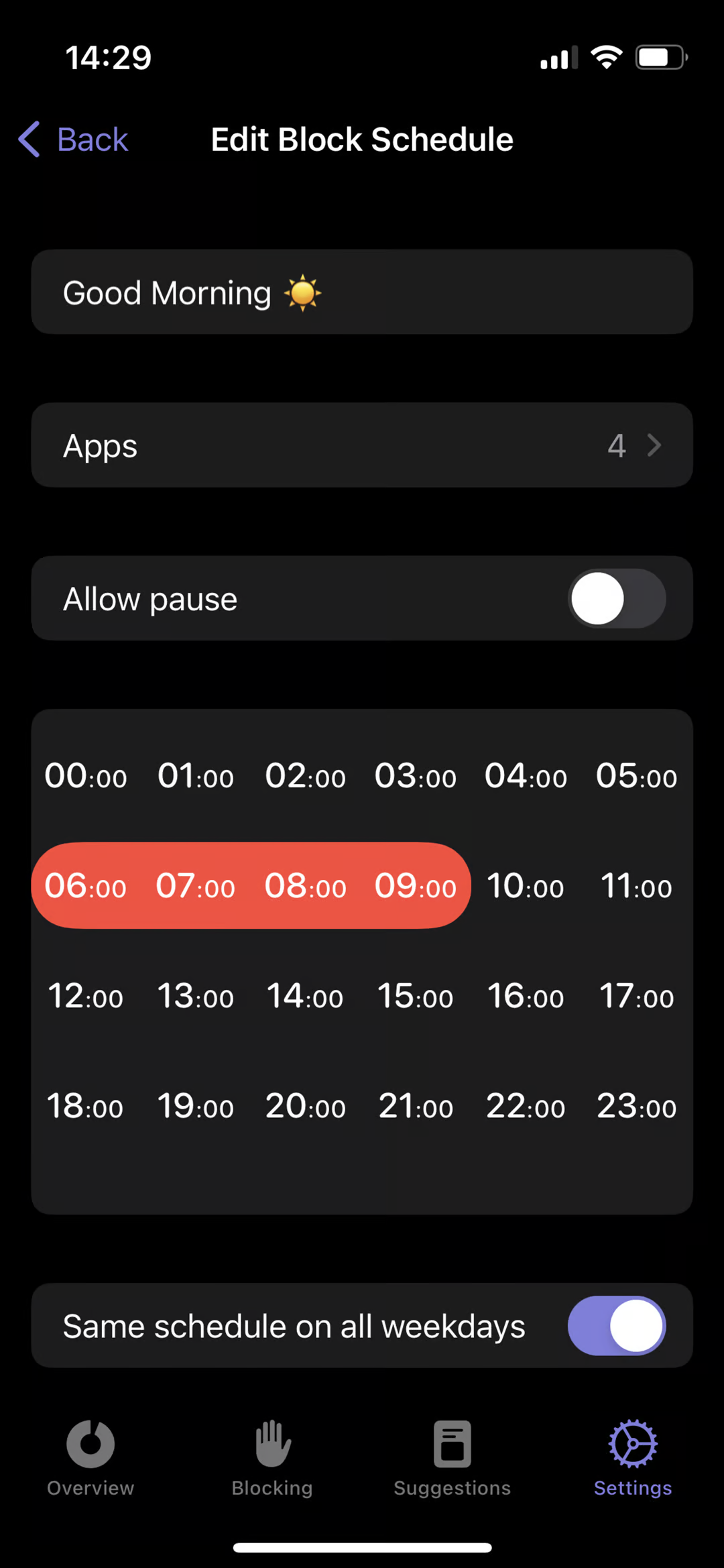
Name: Give your block a descriptive name (e.g., "Deep Work" or "No Social Media after 10 PM").
Select Apps: Choose exactly which apps should be affected by this block.
Configure Hours: Set the specific time window and days of the week when the block should be active.
3. Strict Mode vs. Allowing Breaks
At the bottom of the configuration, you can decide how "hard" the block should be:
Strict Block: You cannot bypass the shield until the scheduled time is over.
Allow Breaks: You have the option to take a short break from the block if absolutely necessary.
Was this helpful?
Still need help? Ask the team