Customize the Intervention [Browser]
Learn how to access the one sec Browser Dashboard to add new websites, customize intervention durations, and adjust website-specific behaviors.
Last updated 7 months ago
Article Content:
Interventions in one sec are small exercises that pop up before you can continue to a target website. The goal of each intervention is to help you reflect on your browsing behavior and decide if you really want to open a particular site. one sec is the ultimate protection against the instant gratification of social media algorithms!
1. Open the Dashboard
To configure your interventions, you need to open the extension’s dashboard:
Find the one sec icon in your browser's extension bar (top right corner).
Click the icon to open a little pop-up window.
Press the Dashboard button.
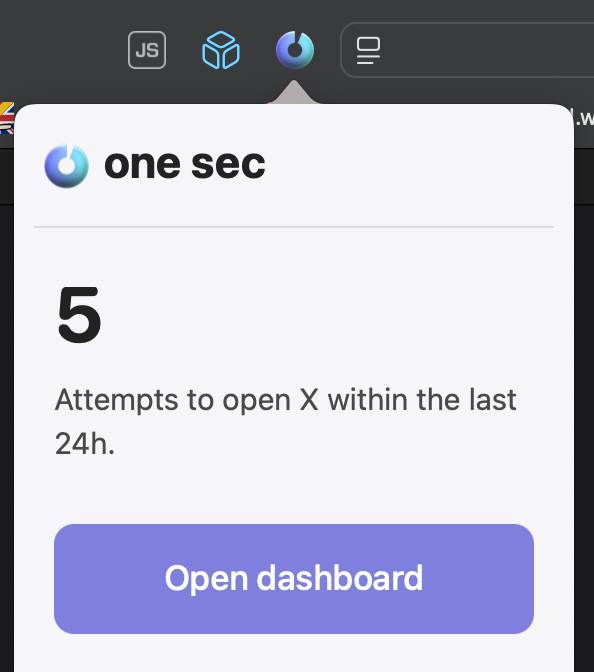
2. Manage Websites on the Dashboard
On the dashboard, you can see all the websites you have already configured and check how much time you have saved.
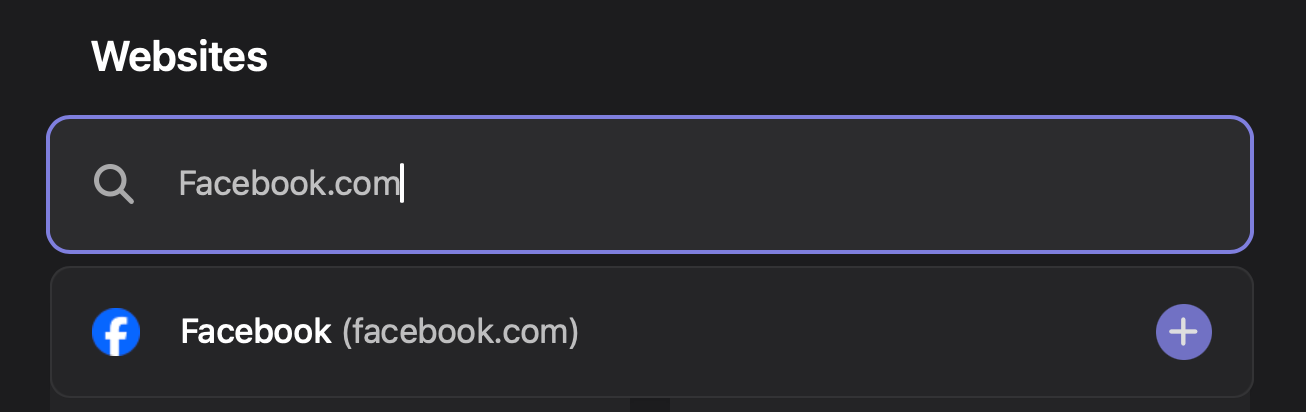
Add new websites: Type the website name or URL into the search bar at the top.
Website-specific behavior: You can customize settings for individual pages. For example, you can increase the intervention duration for a highly distracting site, or specifically allow certain sub-domains/sub-paths without an intervention.
3. Customize Global Intervention Settings
To change how the intervention itself works:
On the left side of the dashboard menu, select Customize.
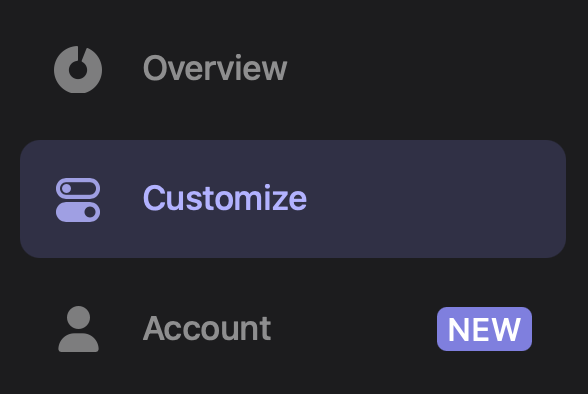
Here, you can modify global settings such as:
Intervention type: Choose between the standard Breathing Exercise or Type random text.
Intervention duration: Adjust the delay time or the required length of the random text.
Intervention phrase: Change the text displayed during the wait (e.g., "It’s time to take a deep breath").
Intentional tab switching: Allow leaving a target website for X minutes without requiring another intervention when coming back.
Enable Re-Intervention: Get prompted again if you stay on a site for too long.
Was this helpful?
Still need help? Ask the team