“Don’t get Lost” Reminder Notifications [iOS]
Learn how to set up 'Don’t get lost' reminder notifications on iOS. Stay mindful while using apps and configure sticky banners, Focus mode overrides, and Apple Watch settings.
Last updated 7 months ago
Article Content:
Even after passing an intervention, it’s easy to get lost in an app again. Reminder Notifications help you stay mindful by sending a gentle nudge after a set period of time, asking if you’re still doing what you planned to do.
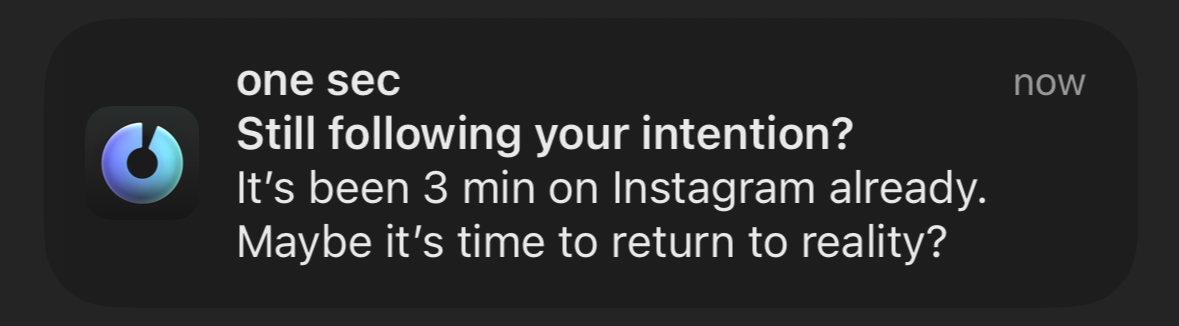
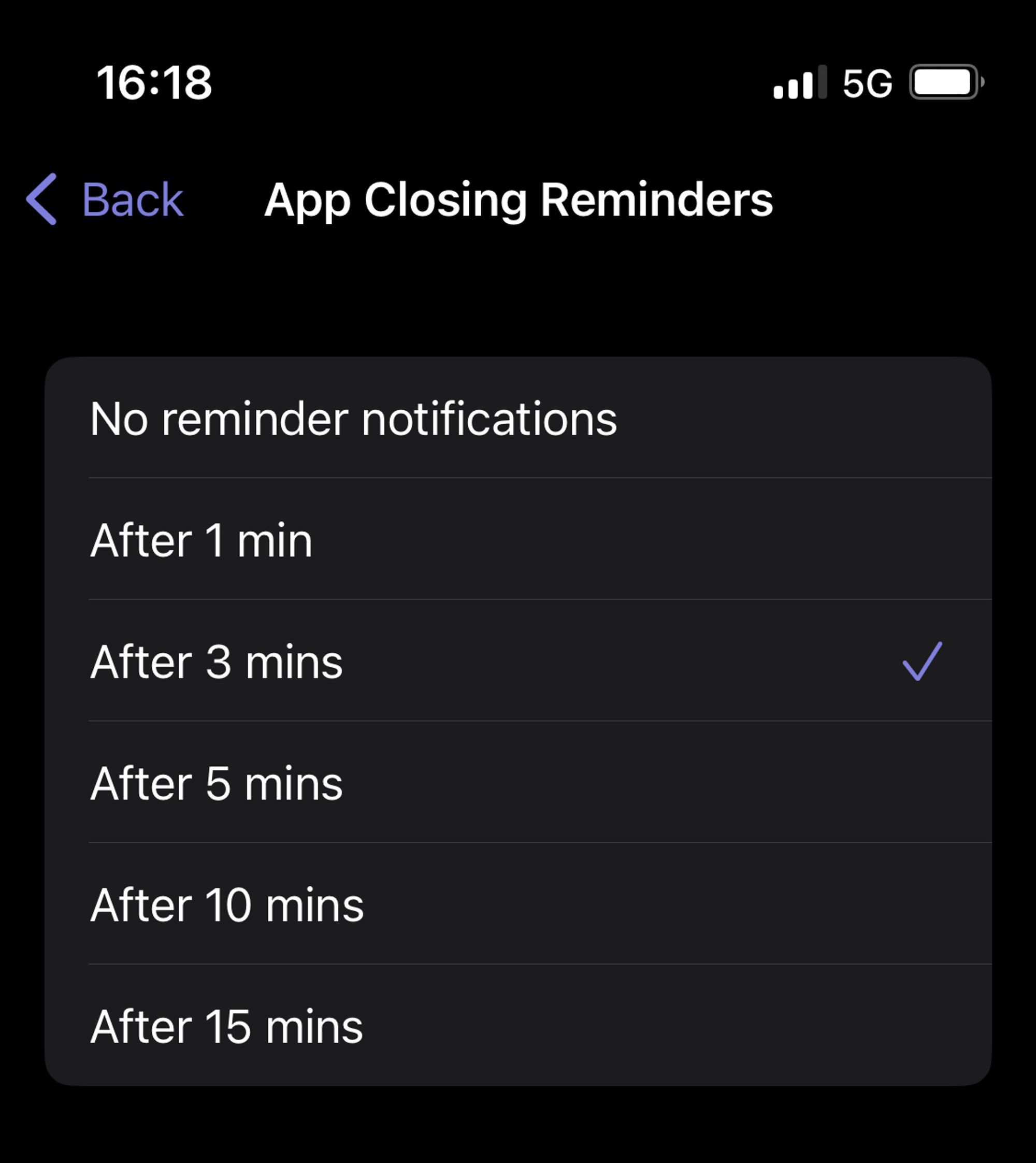
1. Enable Reminder Notifications
Open one sec’s Settings.
Tap on Don’t get lost.
Select a time span that’s suitable for you (e.g., every 5 or 10 minutes).
2. Discard Notifications on App Closing
To avoid receiving reminders after you have already left the app, you should set up the “App Closing” Shortcut Automation. This automatically dismisses all pending reminders when you close the target app.
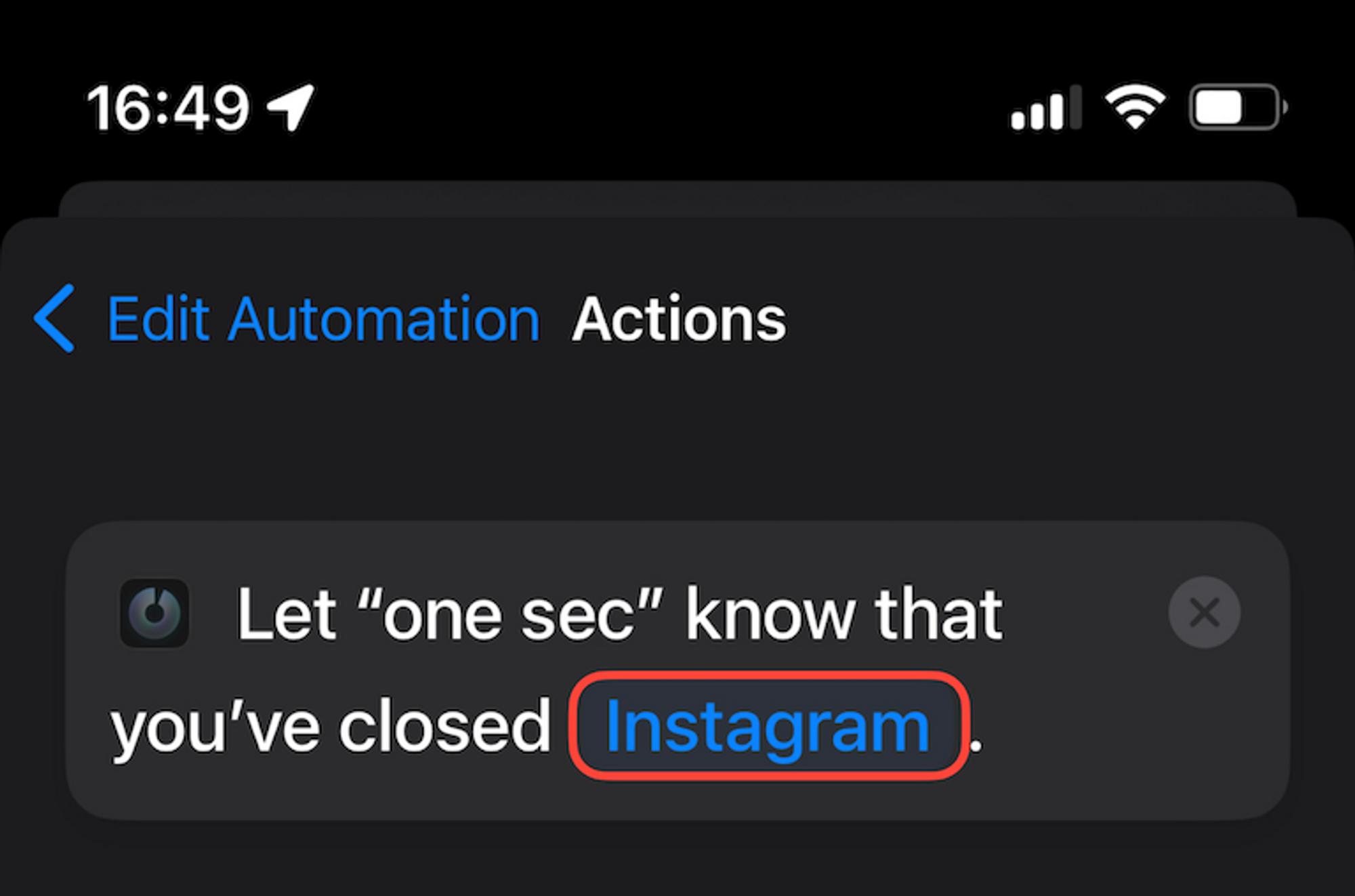
👉 How to set it up: Follow the guidelines in our Intentional App Switching Tutorial to set up the "Is Closed" automation.
3. Make Notifications "Sticky" (Persistent)
By default, iOS banners disappear after a few seconds. To ensure you actually see the reminder, we recommend making them Persistent:
Open iOS Settings → Notifications.
Select one sec.
Tap on Banner Style and select Persistent.
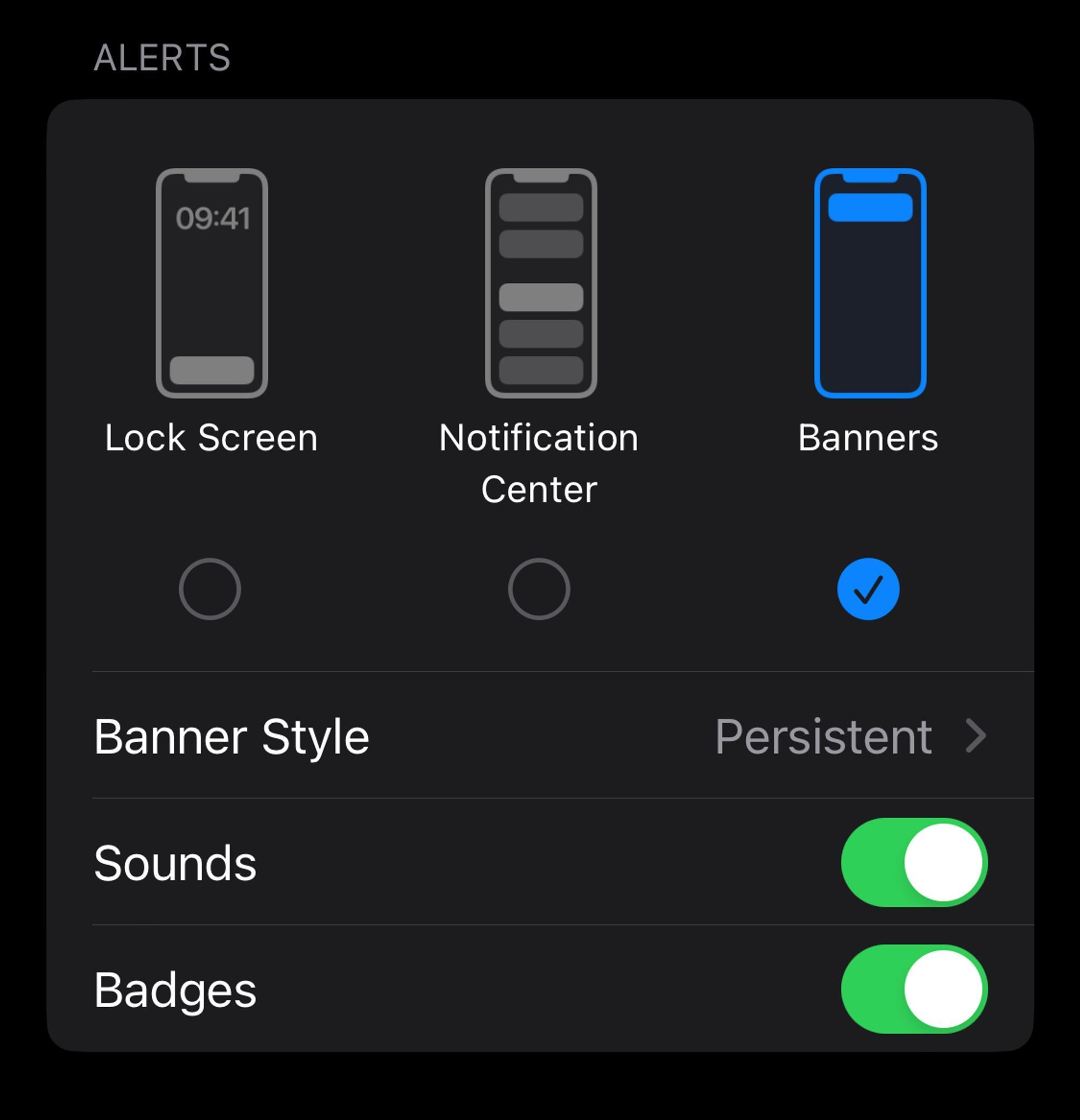
💡 Pro-Tip: You can also deselect "Notification Center" in these settings, as you only need to see the reminders while you are actively using a target app.
4. Notifications during Focus Modes
If you use Focus modes (like "Do Not Disturb" or "Work"), you must explicitly allow one sec to deliver notifications, otherwise the reminders will be silenced.
Open iOS Settings → Focus.
For every Focus in your list:
Tap on Apps (Ensure "Allow Notifications From" is selected).
Add one sec to the list of allowed apps.
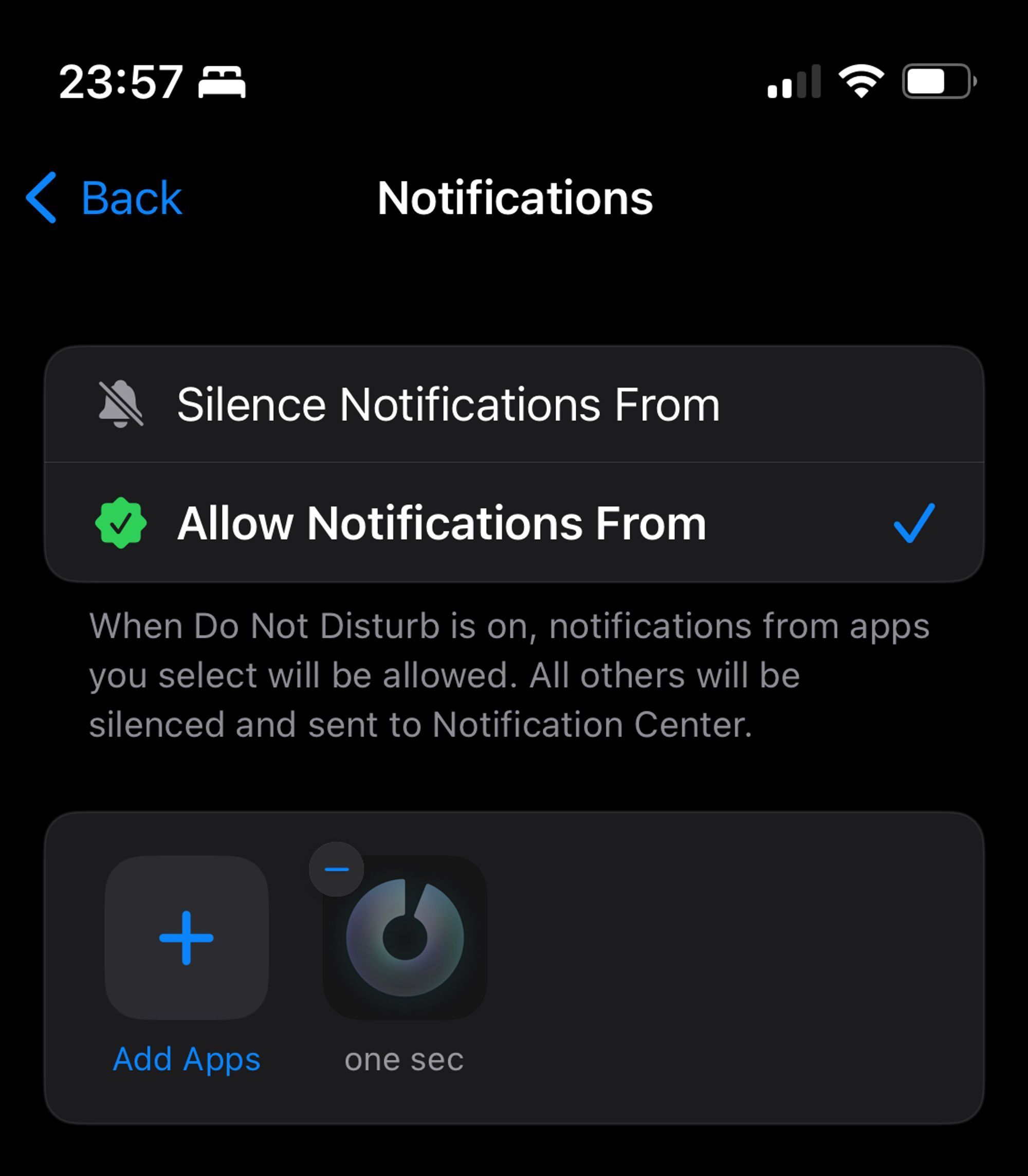
Note: one sec does not send any other notifications (marketing, etc.), so it won't disturb your focus unnecessarily.
5. Disable Mirroring to Apple Watch
Since these reminders are only relevant while you are looking at your phone's screen, you might want to stop them from vibrating on your wrist.
Open the Watch app on your iPhone.
Go to Notifications.
Scroll down to Mirror iPhone Alerts From.
Disable the toggle for one sec.
Was this helpful?
Still need help? Ask the team