Prevent Deleting or Disabling Automations [iOS]
Find yourself tempted to disable your one sec automations? Learn how to lock the Apple Shortcuts app to prevent your 'short-term self' from bypassing your focus goals.
Last updated 7 months ago
Article Content:
A common way our "short-term self" tries to bypass one sec is by opening the Apple Shortcuts app and simply deleting or toggling off an automation.
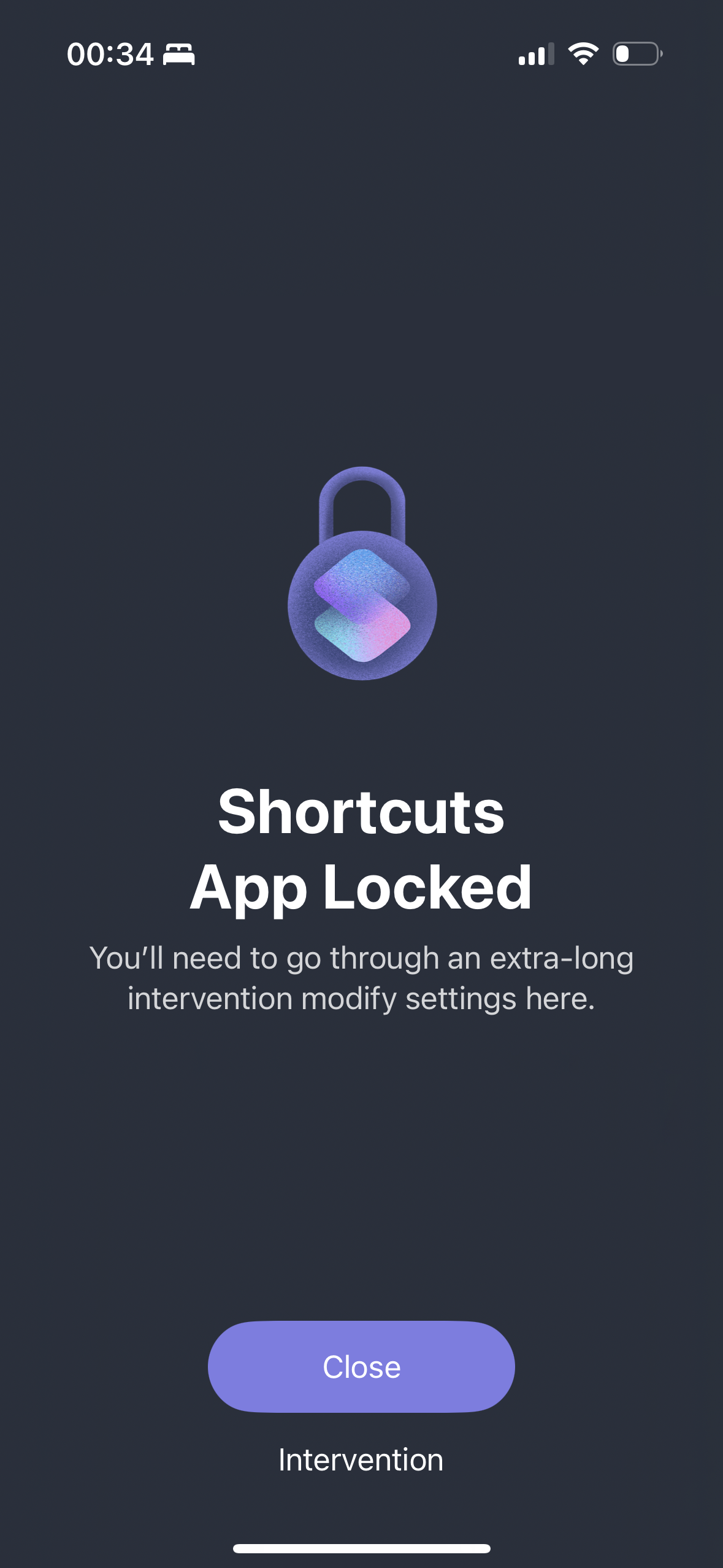
To prevent this, you can lock the Shortcuts app itself, requiring a breathing exercise (or a long intervention) before you can access it.
How to lock the Shortcuts app:
Open one sec and go to the Customize tab.
Select Lock Shortcuts App.
Grant Permissions: If you haven’t done so yet, the app will ask for Screen Time Permissions. This is necessary for one sec to be able to "shield" other apps like Shortcuts.
Select Shortcuts: In the app picker, ensure the Shortcuts app is selected.
Done! Now, whenever you try to open the Shortcuts app to change your automations, one sec will intervene first.
Was this helpful?
Still need help? Ask the team