Prevent target app preview (Avoid the “Glimpse”) [iOS]
Avoid seeing a brief glimpse of your target app before the intervention triggers. Learn how to replace app icons with one sec shortcuts for a faster and cleaner experience.
Last updated 7 months ago
Article Content:
Especially on older devices, the intervention can sometimes take a couple of seconds before it triggers. This results in a brief "glimpse" of the app's content (e.g., your Instagram feed) before one sec covers it.
To prevent this, you can replace the target app’s icon on your Home Screen directly with a one sec Shortcut.
💡 Note: Automation performance is heavily improved in iOS 18.3 and newer. We recommend updating your device first, as this might solve the delay without needing the workaround below.
How to set up a direct Home Screen Shortcut:
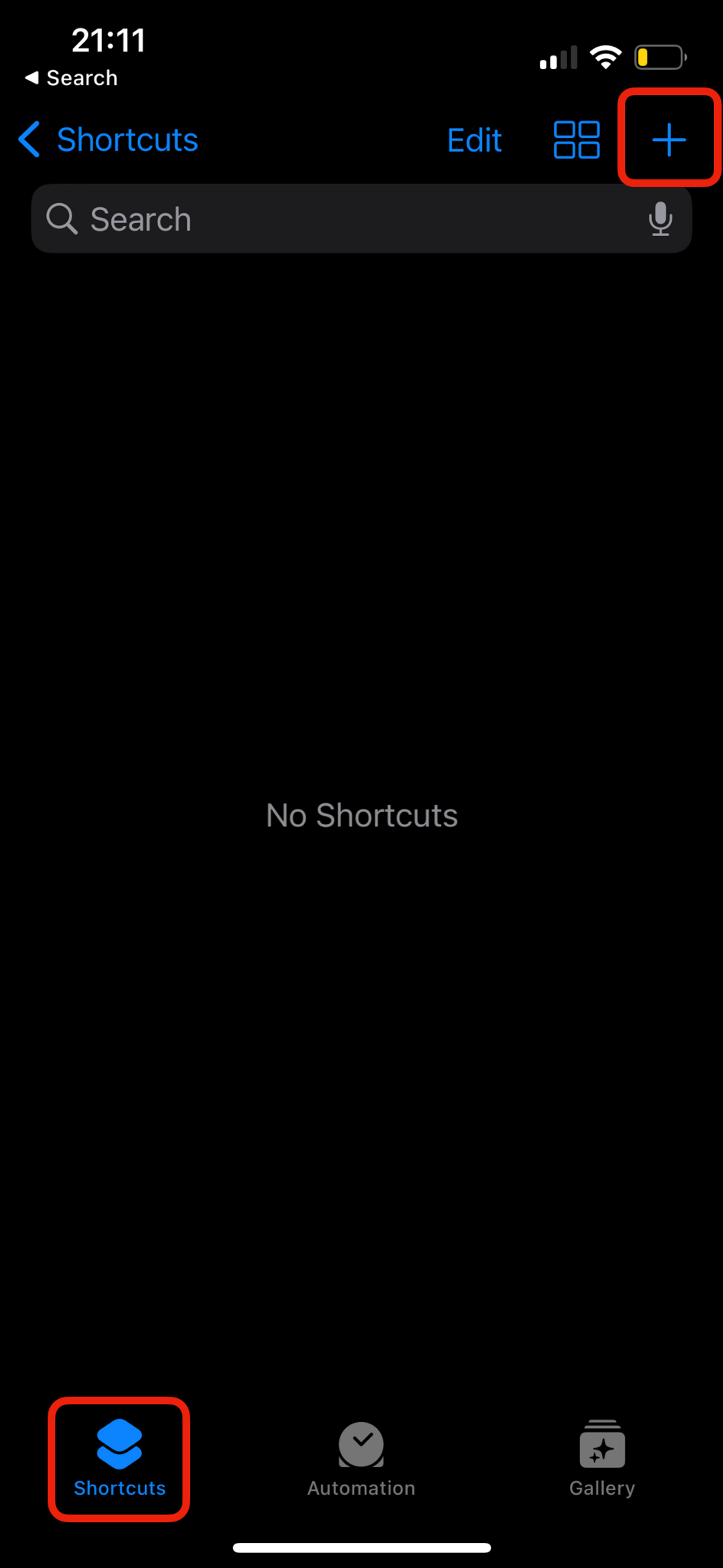
Step 1: Create a new Shortcut Open the Apple Shortcuts app, tap the [+] icon to create a new Shortcut (not an Automation this time!).
Step 2: Add the "Activate one sec" Action
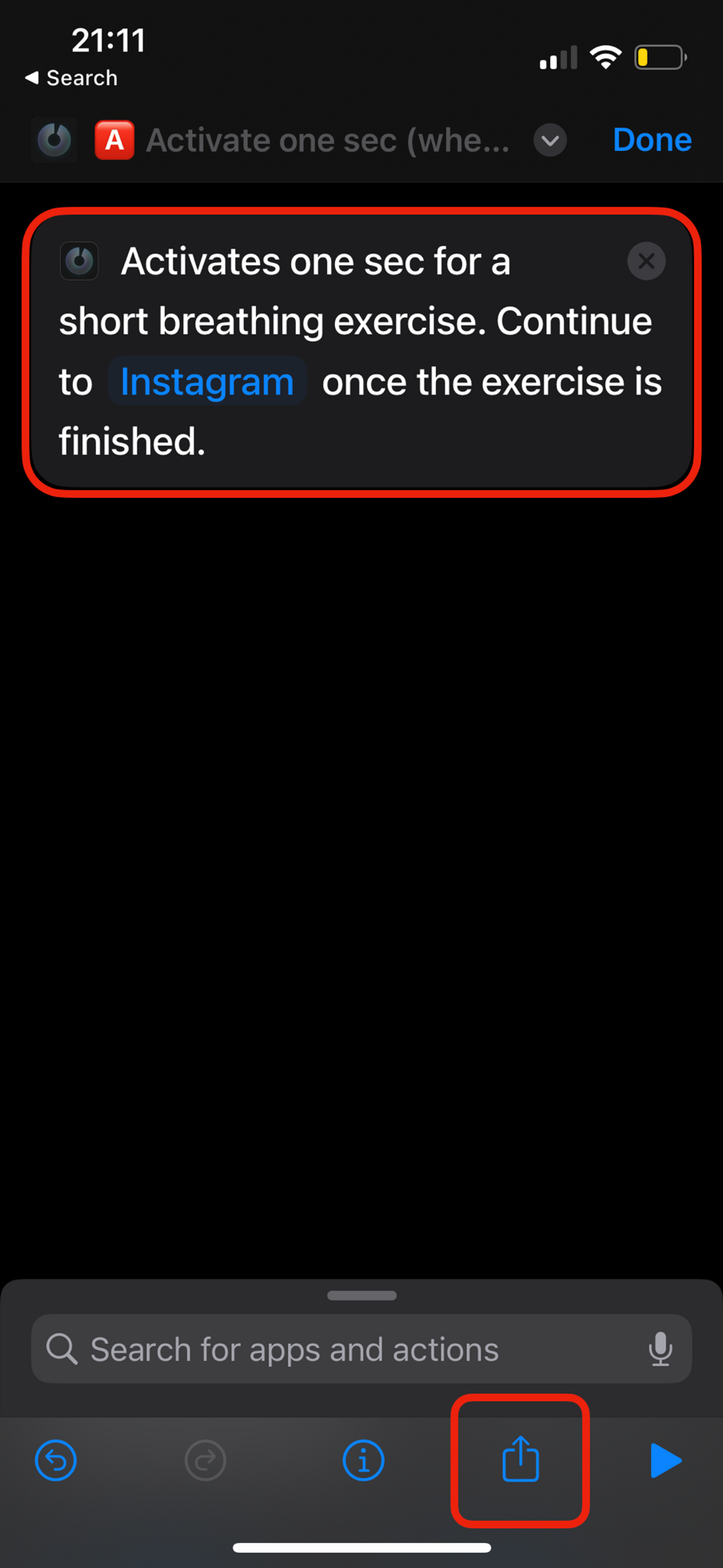
Search for and add the action: 🅰️ Activate one sec.
Tap on App within the action and select your target app (e.g., Instagram).
Tap the Share icon at the bottom of the screen.
Step 3: Add to Home Screen Select Add to Home Screen from the share menu.

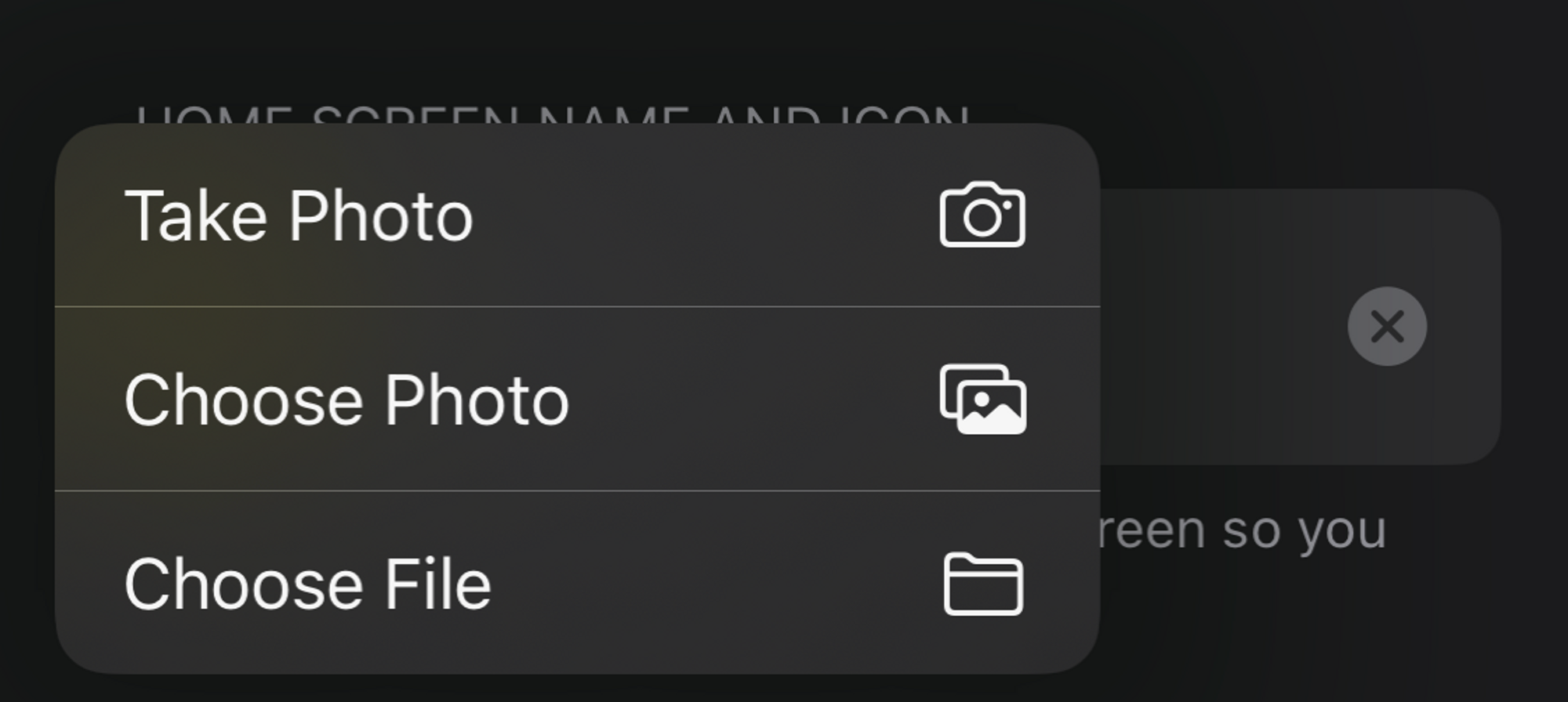
Step 4: Customize Name and Icon
Here you can change the app’s name and icon, as it will be displayed on the Home Screen later.
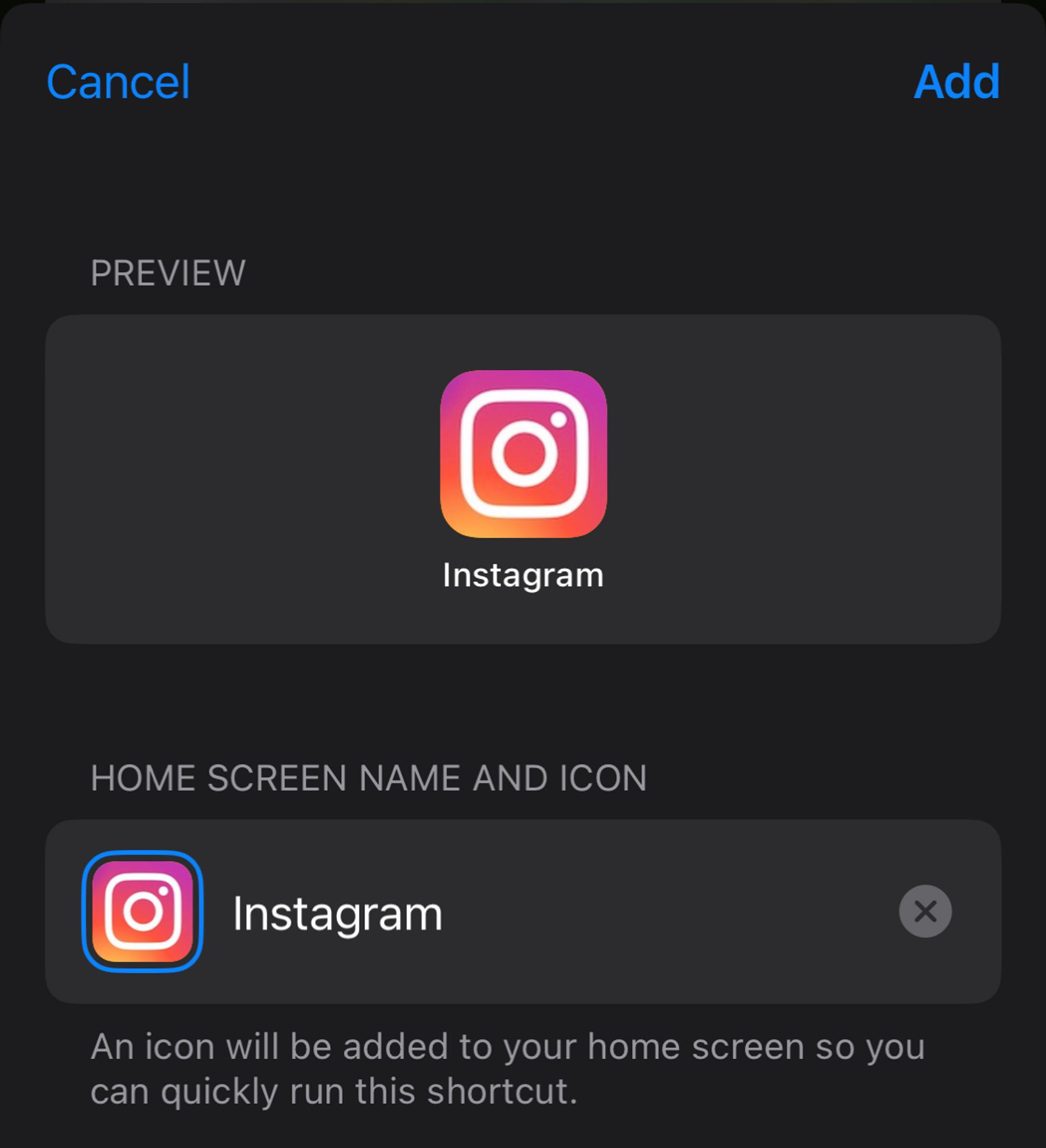
Step 5: Finalize Tap Add. You now have a new icon on your Home Screen.
How to use it: From now on, use this new shortcut icon instead of the official app icon. Since the shortcut triggers one sec before the app is even opened, you won't get any glimpse of the content anymore.
Was this helpful?
Still need help? Ask the team